
Getting started with O'tra
Platform: In the Mac app, use File → New Score, File → Open…, and File → Save. In the web editor, use the toolbar controls; hover over an icon to see its label. The Mac screenshots in this library show the installed app, not the public web build.
O'tra is a music notation editor for writing, playing, printing, and exchanging scores. O'tra Rescue is a separate browser tool for converting Encore .enc files. Use the editor to continue writing music; use Rescue when your main task is converting a collection of old files.
Write and hear your first notes
- Open the O'tra editor and choose New. At startup choose a new project or reopen a recent score. In builds showing Start a score, choose Blank score or Open last score. Escape keeps the blank score.
- In New score, choose an ensemble. For Solo, choose an instrument by name.
- Enter a title and composer, then choose the key, time signature, tempo, and number of measures. You can leave the defaults for a quick start.
- Choose a quarter note from the note controls, or press 5 with the default O'tra keyboard preset.
- Point to a line or space on the staff and click to place a note. Click farther along the measure to add more notes. O'tra fills gaps with rests.
- Choose Play, or press Space, to hear the score. Press it again to stop.
- Choose Save to keep an O'tra score file outside the app's automatic recovery storage.
The New score panel folds away after you write your first note. You can still change the instruments, title, page, and notation using the editor's other controls.
Find your way around
| Area | What it does |
|---|---|
| New, Open, Save | Start a score, open files, save, and export |
| Arrow beside Open | Open Your scores and other available file actions |
| Arrow beside Save | Open Save as and export |
| Note controls over the score | Choose Select, a note value, dots, rests, or (in the inspected Mac app) accidentals |
| Left dock | Find symbols, voices, tuplets, text, guitar, percussion, and layout tools |
| Right dock | Inspect selection, pitch, instruments, performance, MIDI, and other settings |
| Score menu | Open page, staff, title, and engraving setup |
| Score and instrument tabs | Switch between the full score and linked parts |
| Status line | Read what just happened and what to do next |
A dock button opens its panel. Click it again or use its close button to close it. You can drag a panel by its title bar; double-click the bar to return it beside its dock. Panels can be resized. A symbol panel can fade while a placement tool is active so you can click the music beneath it.
Choose an appearance
Open Appearance in the right dock and choose Dark, Light, or System. Dark is the initial setting. System follows your computer’s appearance while O'tra is open. The choice stays in this browser or app and follows other open editor windows. Score pages stay white.
If your screen differs
Some controls depend on whether you use the browser or desktop app, whether a score or part is open, and whether you are viewing a shared score. Audio-device controls require desktop audio support. Account and payment features require the connected service. Use the controls visible in your version; contact support with a screenshot and version if a documented control is missing.
Create and organize scores
Create a score
In the web editor choose New; on Mac choose File → New Score. Then use New score to choose an ensemble, instruments, title, composer, key, time signature, tempo, and length. Fields apply to the score as you change them. The initial defaults are an untitled score, a tempo of 120 quarter notes per minute, and eight measures.
Choose the instrument before entering music when possible. Its notation setup and sound are related, but changing a display name alone is not the same as changing its instrument.
Change instruments and staves
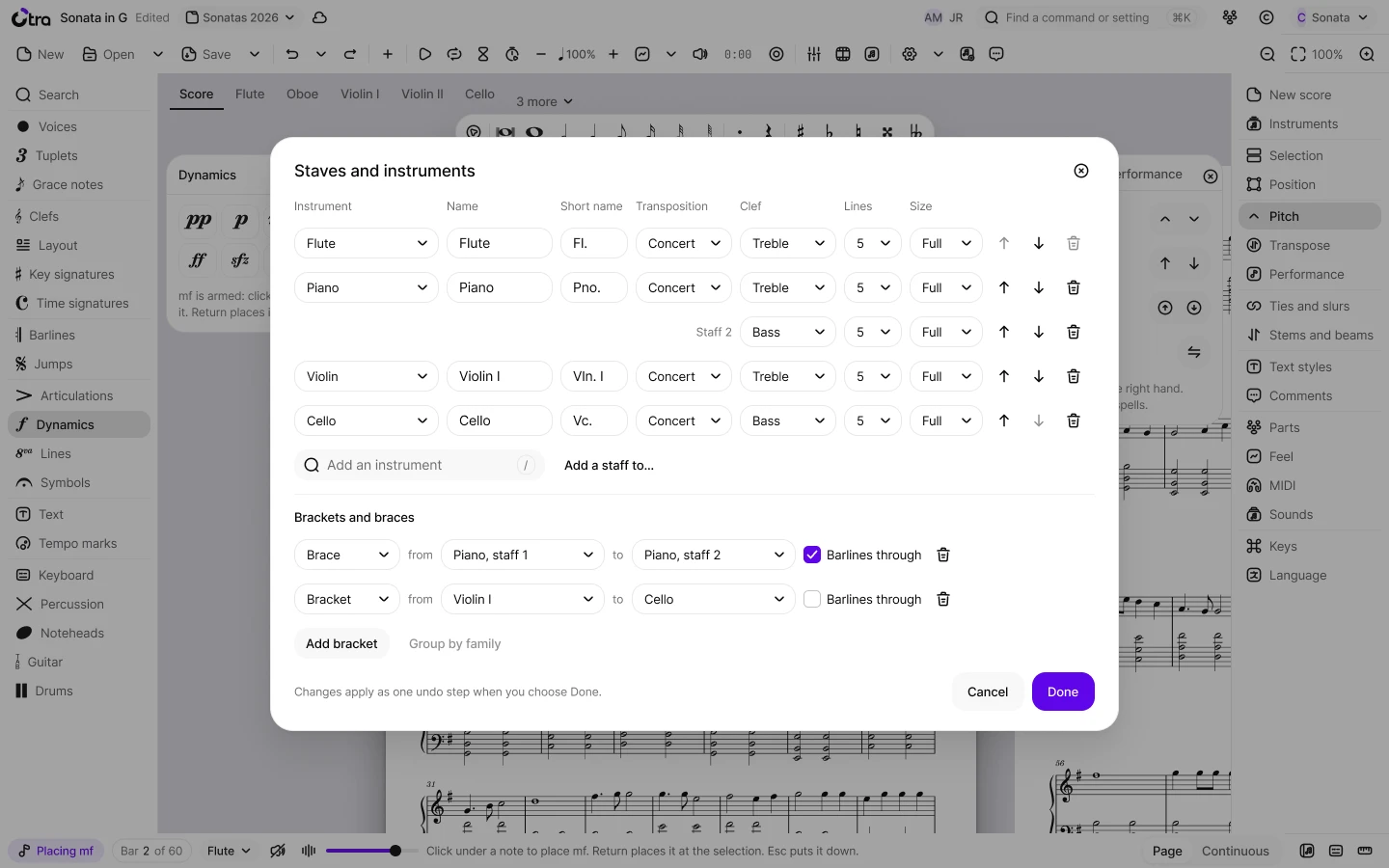
Open Instruments in the right dock to work with the score's instruments. Use Score → Staves and instruments… for detailed staff setup, including names, abbreviations, transposition, clefs, staff lines, and brackets or braces.
Setup changes appear on the score while the dialog is open. OK keeps the visit as one undo step. Cancel or Esc returns the setup to how it was when you opened the dialog.
Reuse an ensemble
The inspected Mac app has Save as template in New score. The public web editor inspected on 23 October 2026 does not show this control. Where available, Save a named template to reuse an instrument setup for future scores. A template is an empty starting setup, not a backup of the completed music. Save the score itself separately. Locally stored templates should not be assumed to follow you to another device.
Add and remove measures
The measure controls provide Add a measure at the end, Insert a measure before the selection, Insert a measure after the selection, Delete the selected measures, and Delete the last measure.
Select the intended passage before inserting or deleting measures. Deleting notes leaves rhythmic space; deleting measures changes the score's structure. Use Undo if the wrong music moves or disappears.
Work on more than one score
Use Score → New window or Open in a new window… in the browser interface. The Mac desktop app places window actions in its native File menu. A browser may open a new window that then asks you to choose the score; allow the requested window if your browser blocks it.
Each score has its own window. If O'tra says the score is already open elsewhere, return to that window. Do not assume two windows provide collaborative editing of the same score.
Reopen a recent score
Open the arrow beside Open to see Your scores. Local entries belong to this browser's storage. Cloud entries, when available, depend on signing in to the same account. If you cannot find a score, check both the original browser profile and any files you saved to disk.
Mac example: ensemble setup
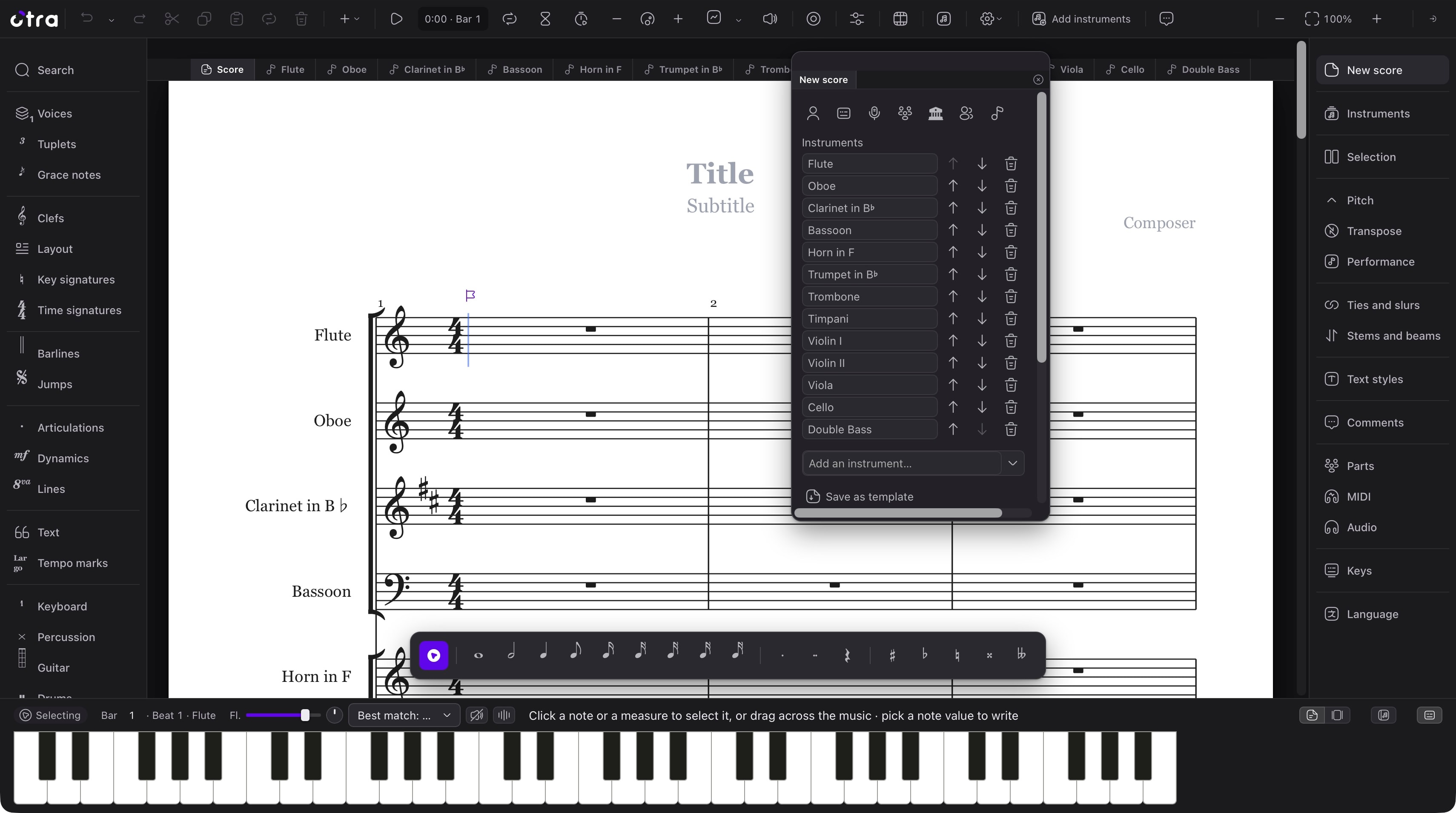
The Mac New score panel shows ensemble choices, an instrument list, Add an instrument, and Save as template. This capture shows an empty orchestral setup. Use the panel scroll area to reach additional setup fields. Captured from the installed Mac app on 23 October 2026; web controls can differ.
Enter notes, rests, and chords
Web and Mac difference: The accidental buttons and + / - / = shortcuts below apply to the inspected Mac interface. They were absent from the public web editor inspected on 23 October 2026. In that web version, select the note and use Pitch to move it by a semitone or choose Respell.
Enter notes with the mouse
- Choose a note value from the note controls.
- Move over the staff and use the preview to choose the pitch and position.
- Click to write the note.
- Keep clicking to write more notes with the same value.
You can begin on a later beat without entering every earlier rest. O'tra fills the gap. To build a chord, click the same time column at another pitch in the same voice.
Choose Select when you want to select existing music instead of placing notes. Esc puts away the current entry tool; if a panel or text field is active, Esc may close that first.
Enter notes with the computer keyboard
Choose a duration, position the entry cursor on the intended staff and beat, then type A–G. The duration remains selected for subsequent notes. Use the Pitch controls to correct a note's octave or accidental. Check the highlighted note and status line before continuing.
Default duration keys are:
| Key | Value |
|---|---|
| 7 | Whole note |
| 6 | Half note |
| 5 | Quarter note |
| 4 | Eighth note |
| 3 | Sixteenth note |
| 2 | Thirty-second note |
| 1 | Sixty-fourth note |
| 8 | One-hundred-twenty-eighth note |
| 9 | Two-hundred-fifty-sixth note |
These are the O'tra preset defaults. A different preset or personal key assignment can change them. Keys shows the assignments currently in use.
Enter rests and dots
Press 0 to write a rest at the entry cursor using the chosen value. Shift+0 switches mouse entry to rests. Choose the rest control again when returning to notes.
Press . to toggle a dot; Shift+. selects a double dot. Check the note controls before writing the next note. A dot lengthens the selected value; it does not change the tempo.
Change an existing duration
Choose Select, select the note or passage, then choose a duration. While selecting, the duration applies to the selected notes and rests. While writing, it sets the value for the next notes. If the result is unexpected, undo and check whether you were selecting or writing.
Enter accidentals
Select an existing note and choose sharp, flat, natural, double sharp, or double flat. With no note targeted, an accidental can be armed for the next note.
The default keys are + for sharp, - for flat, and = for natural. Repeating sharp or flat can produce the corresponding double accidental. The explicit accidental buttons are useful when the keyboard layout differs.
Use the on-screen piano
Show the piano keyboard using the editor's piano control. Choose a note value and click a piano key to write its pitch at the cursor. Shift-click another piano key to add it to the current chord.
Why did typing stop entering notes?
When a title, search, lyric, or other text box has focus, typing belongs to that box. Finish or leave it, then return to the score. A shared or account-restricted read-only score also refuses edits.
Select, edit, undo, and transpose music
Select music before changing it
Choose Select to put away note entry. Click a note or drag over a passage. The Selection panel offers broader selection actions such as Whole staff and Whole line, plus filters that restrict which voices or objects an edit affects.
If an edit misses notes, check the selection filter. If an edit affects too much, use Undo, narrow the selection, and repeat it.
Cut, copy, paste, and repeat
Select the music, then use Cut or Copy. Move the entry cursor to the intended destination before Paste. Use Repeat to repeat the selected music. Check the destination staff, beat, and voice, especially in a score with several instruments.
The usual Ctrl shortcuts apply on Windows and Command shortcuts on Mac: X cuts, C copies, and V pastes. R is the default Repeat key.
Delete notes or measures
Delete or Backspace removes the selected object or music. Note deletion and measure deletion are different operations. To remove whole bars, use Delete the selected measures. Use Undo immediately if you removed the wrong object.
Undo and redo
Ctrl/Command+Z undoes an edit. Ctrl/Command+Shift+Z redoes it; Ctrl+Y also redoes with the default preset. The history controls let you inspect previous edits. Score editing history is not a promise of cloud version history or recovery after browser storage has been erased.
Change pitch
Select the notes, then use Pitch in the right dock:
- Up/Down moves by a semitone.
- Alt/Option+Up/Down moves by a scale step.
- Ctrl/Command+Up/Down moves by an octave.
- J respells enharmonically, such as changing how an equivalent pitch is written.
Transpose a passage or score
- Select the passage you want to transpose.
- Open Transpose in the right dock.
- Choose an interval and Up or Down, or choose a destination under To key.
- Check the result and undo if necessary.
Without a passage or current note, Transpose can act on the whole score. Select explicitly when you intend to change only one passage. Selection filters also affect the target.
Concert pitch versus transposition
The Concert pitch control changes how transposing instruments are displayed. It is different from transposing the composition. Before printing or exporting parts, check whether you want concert-pitch or written-pitch notation.
Move notation visually
Drag supported notation objects to adjust their positions. Use Position for the selected mark, text, dynamic, line, or slur. Visual offsets and musical pitch/time are different: use musical editing controls when you want the note to sound differently.
Mac screenshot: Transpose
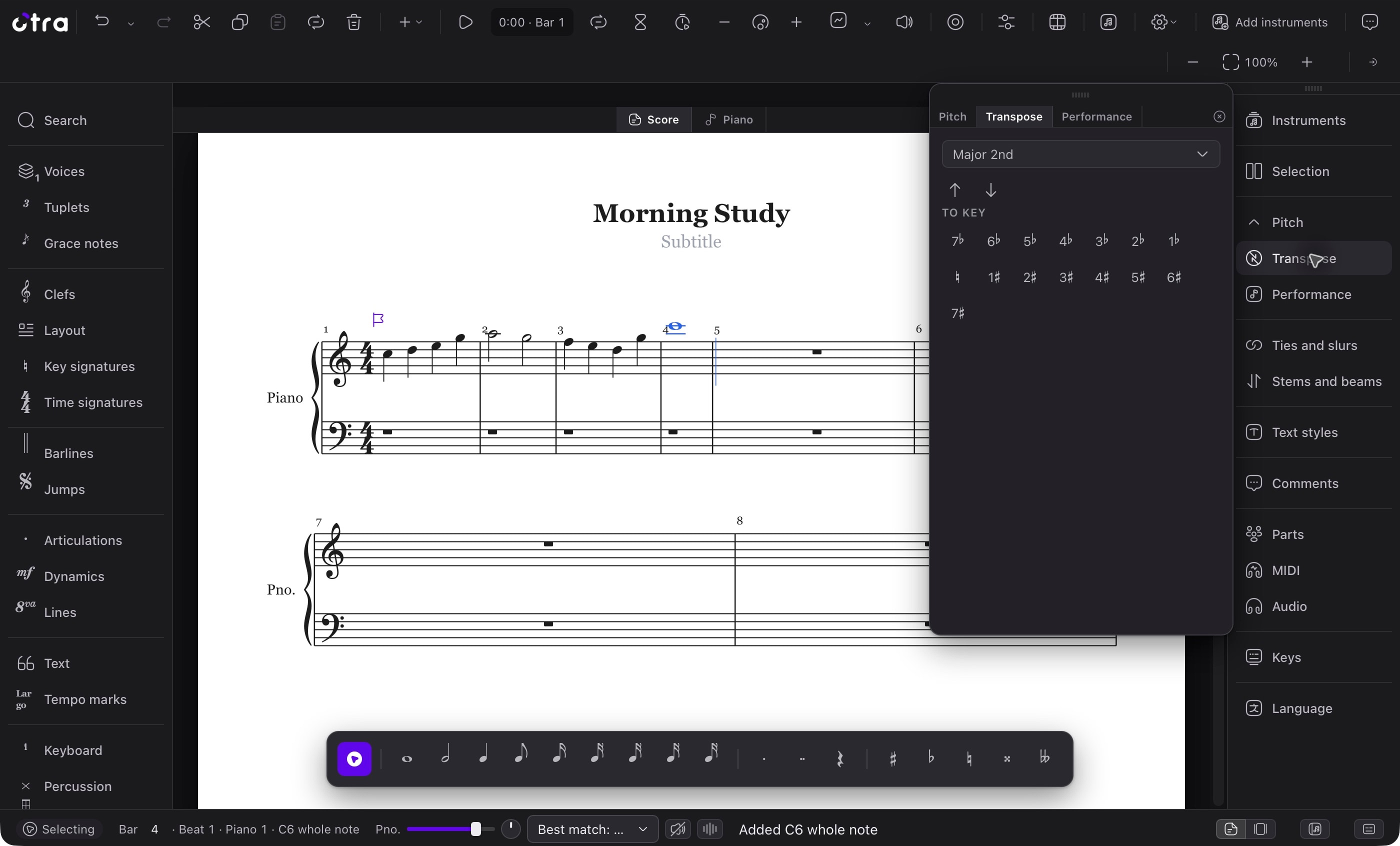
Select a passage, open Transpose, then choose an interval and Up or Down, or a destination under To key. The screenshot shows the controls before applying a change. Captured 23 October 2026 from the installed Mac app.
Voices, tuplets, ties, and notation symbols
Write independent voices on a staff
Open Voices in the left dock and choose a voice before entering its notes. Voices let independent rhythms share one staff. V moves to the next offered voice with the default preset. O'tra offers the first four voices, additional voices used by the score, and a way to add another.
If notes unexpectedly join a chord or editing affects the wrong line, check the current voice and selection filter.
Write tuplets
- Choose the note value.
- Open Tuplets and choose a ratio, such as a triplet.
- Click or type the notes in that group.
- Choose the active ratio again or use Esc to leave the tool when finished.
The Other tuplet field accepts n:m, meaning n notes in the time of m. For example, 11:8 means eleven notes in the time normally occupied by eight. Enter whole numbers from 1 to 99 and press Enter.
When selecting a single note or rest, choosing a tuplet can turn that event into a tuplet, including a nested tuplet. Check selection versus entry mode before applying a ratio.
Add a tie
A tie joins adjacent notes of the same pitch. Select the note and choose Tie in Ties and slurs, or press T. In writing mode, T after a newly written note can write its tied continuation at the cursor. In selection mode, tying a single note moves the selection to the continuation so you can extend the chain.
If a tie does not appear, check that the next event contains the same pitch. Use a slur for a phrase across different pitches.
Add a slur
Select the phrase from its first to its last note, then choose Slur or press S. The operation applies across the selected notes on each staff. Repeating the command on the same span can remove the slur.
Place symbols
Use the left dock to find Clefs, Key signatures, Time signatures, Barlines, Jumps, Articulations, Dynamics, Lines, Keyboard, or Percussion. Choose a symbol, then click its target on the score. The pointer preview and status line explain the active placement tool. Press Esc when finished.
Use palette search if you know the musical term but not its panel. Some search results point to a control elsewhere in the editor.
Repeats, endings, and jumps
Use Barlines and Jumps for repeat signs, endings, and navigation marks. Check playback through the passage after placing them; a visible mark alone does not guarantee that a complex or incomplete repeat structure expresses the intended route.
Stems and beams
Select notes, then open Stems and beams to change their treatment. Use these controls for notational grouping and stem direction. Changing a beam is different from changing a note's duration or voice.
Dynamics and expression
Place dynamics on the intended staff and use the available line tools for hairpins and other spanning marks. Listen after editing. Text that merely describes an effect is not always equivalent to placing the corresponding musical symbol.
Mac screenshot: Tuplets
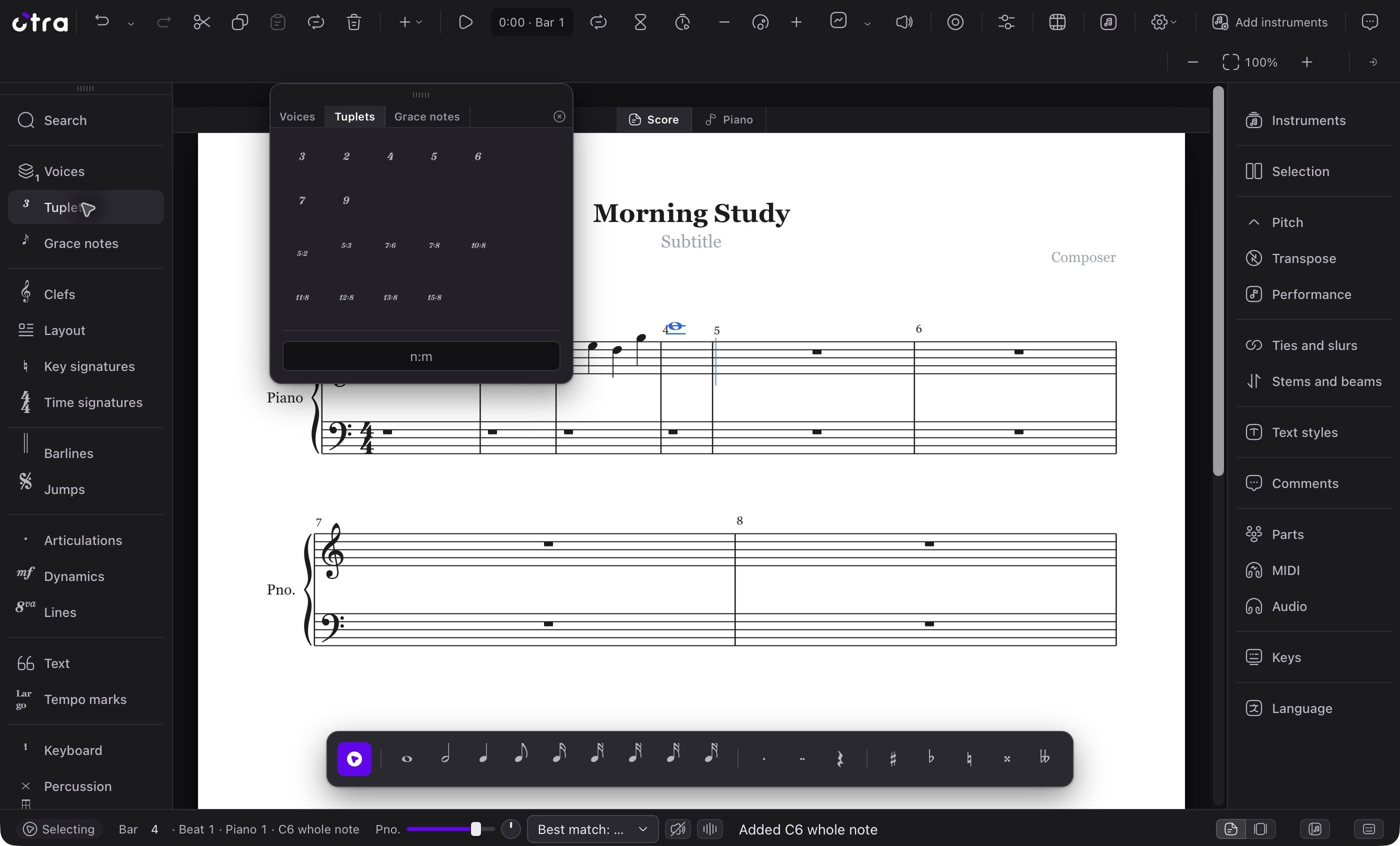
Open Tuplets in the left dock. Choose a preset ratio or type a custom ratio in the n:m field. Hover over a symbol to read its label. Captured 23 October 2026 from the installed Mac app.
Lyrics, text, chord symbols, and titles
Add lyrics
- Write the melody first.
- Open Text in the left dock and choose Lyrics, then click the starting note. You can also use Ctrl/Command+L at the selection.
- Type a syllable.
- Use Space or Tab to move to the next note, - to join syllables, and _ to extend a syllable.
- Use Esc when finished.
Lyrics attach to notes. If a syllable appears under the wrong note, check the starting selection and voice. For additional verses, use the lyric editor's verse navigation rather than placing unrelated plain text below the staff.
Copy lyrics as a paragraph
In builds with Score → Copy lyrics…, open the command to collect the score’s lyrics. Choose Copy, or select the text and copy it manually if clipboard access is unavailable. A score with no lyrics shows a status message.
Add chord symbols
Choose Chord symbol in Text, or use Ctrl/Command+K at the selection. Click a beat and type a chord such as Cm7 or F/A. Space moves to the next beat. Press Esc when finished.
A chord symbol is a label above the music. To write the actual notes of a chord, enter several pitches in the same time column instead.
Add ordinary text
Choose the text tool, click the intended position, type, and press Return. Ctrl/Command+T starts text entry at the selection. Use Text styles in the right dock for named styles and Position for placement.
Add rehearsal and tempo marks
Use Rehearsal mark in Text, or Ctrl/Command+R, to mark a measure. Use Tempo marks for tempo instructions. The custom tempo field accepts a tempo mark and applies it when you press Enter and place it.
For playback changes, use the musical tempo controls rather than assuming ordinary text such as “faster” changes the performance.
Edit the title and composer
The title, subtitle, and composer can be edited where they appear on the first page. Score → Titles, header and footer… provides the corresponding setup controls and page text settings. Use OK to keep setup changes or Cancel to discard that visit.
Why are shortcuts typing letters instead?
While a text box is active, most keys edit its text. Finish the field or close text entry before running notation shortcuts. Conversely, click into a text box before typing a title so letters do not become notes.
Mac screenshot: Lyrics and text
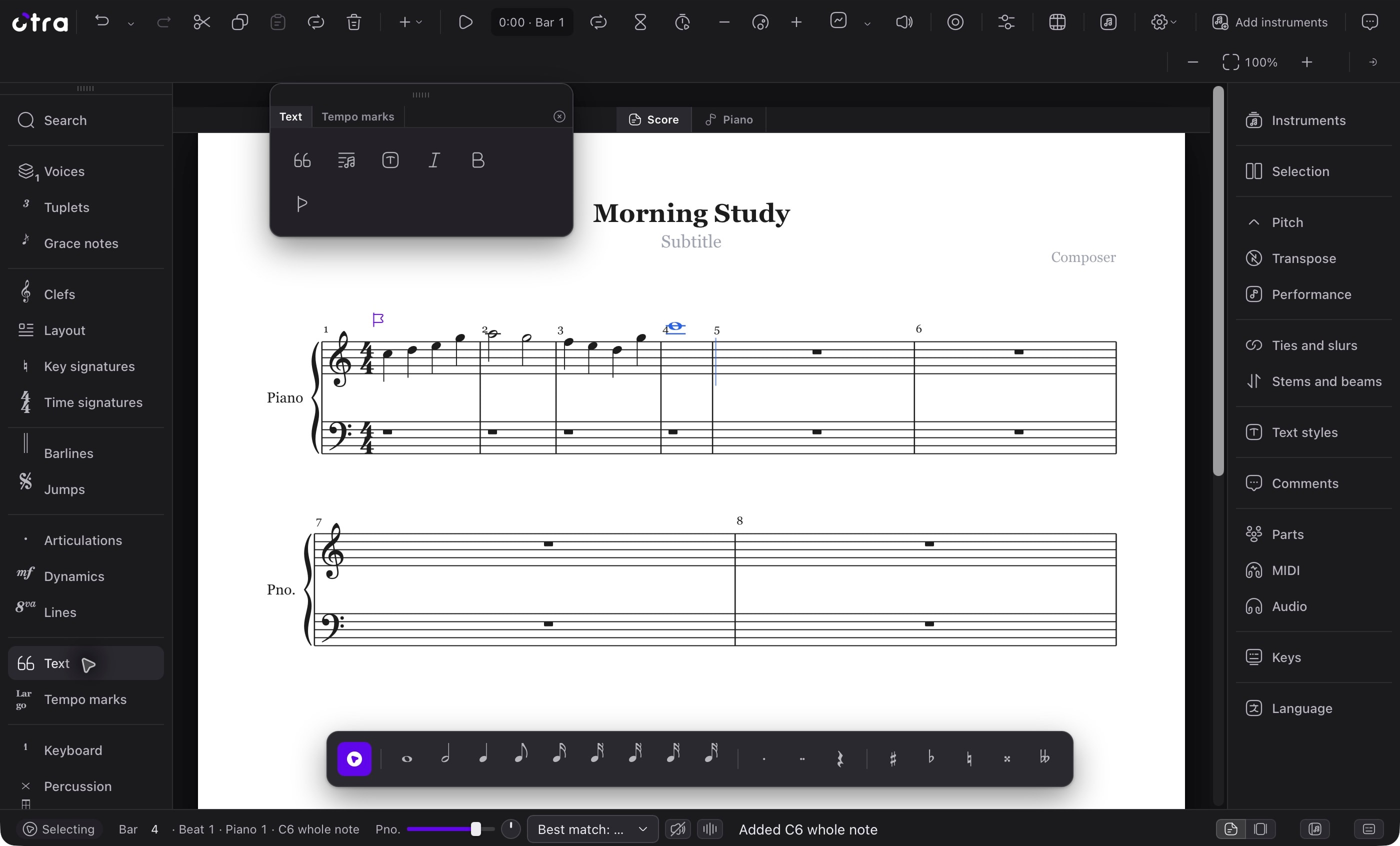
Open Text in the left dock for Lyrics, Chord symbol, Text, Expression text, Technique text and Rehearsal mark. Hover over an icon to identify the tool before placing it. Captured 23 October 2026 from the installed Mac app.
Guitar tablature and percussion
Show guitar or bass tablature
- Select a position on the intended staff.
- Open Guitar in the left dock.
- Choose TAB beneath notation or TAB alone.
- Choose a tuning and set the capo if needed.
These settings act on the staff at the cursor. If the wrong instrument changes, undo, move the cursor to the intended staff, and try again. Choosing the active TAB display option again returns the staff to notation.
TAB is another view of the staff's music. Verify playable string and fret choices after changing tuning or capo, particularly for imported scores. A tuning already present in an imported score may be shown as Own tuning.
Add guitar marks
Use the guitar tools available in your version for guitar notation. Place the mark on the intended note or passage and check its appearance. Do not assume every visible technique has identical playback or survives every interchange format.
Set up a percussion staff
Choose a percussion instrument, then place the cursor on its staff. Open Drums to select the appropriate kit or map. A drum map connects a percussion sound to its written staff position and notehead.
Use Percussion for percussion notation symbols. Use Score → Staves and instruments… when you need to change staff-line or clef settings.
A drum sounds or appears incorrectly
Check that the staff is a percussion staff, the intended drum kit is selected, and the sound or external MIDI destination matches that kit. The same written position can mean different instruments under different maps. Imported MIDI or notation may need review against the original.
Is changing the map the same as changing a sound?
No. The map controls the relationship between written percussion and drum pitches. The sound library or connected instrument determines what those pitches sound like. Check both when moving a score to another computer or instrument.
Mac screenshot: Guitar notation
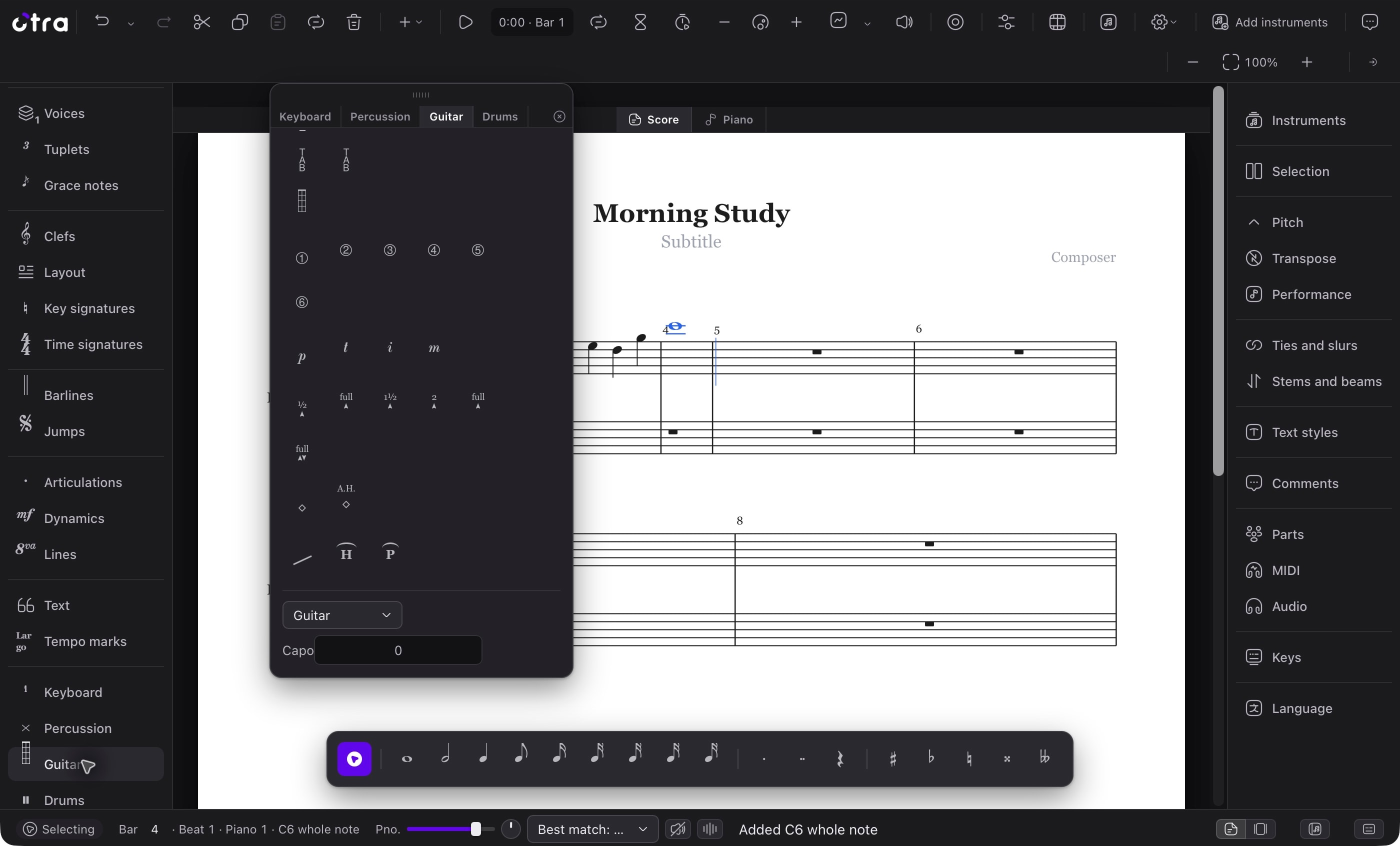
The Guitar panel contains TAB, string, fingering and guitar-technique tools, with Tuning and Capo below. This is a view of the controls; TAB has not been applied to the piano example. Captured 23 October 2026 from the installed Mac app.
Mac screenshot: Drum maps
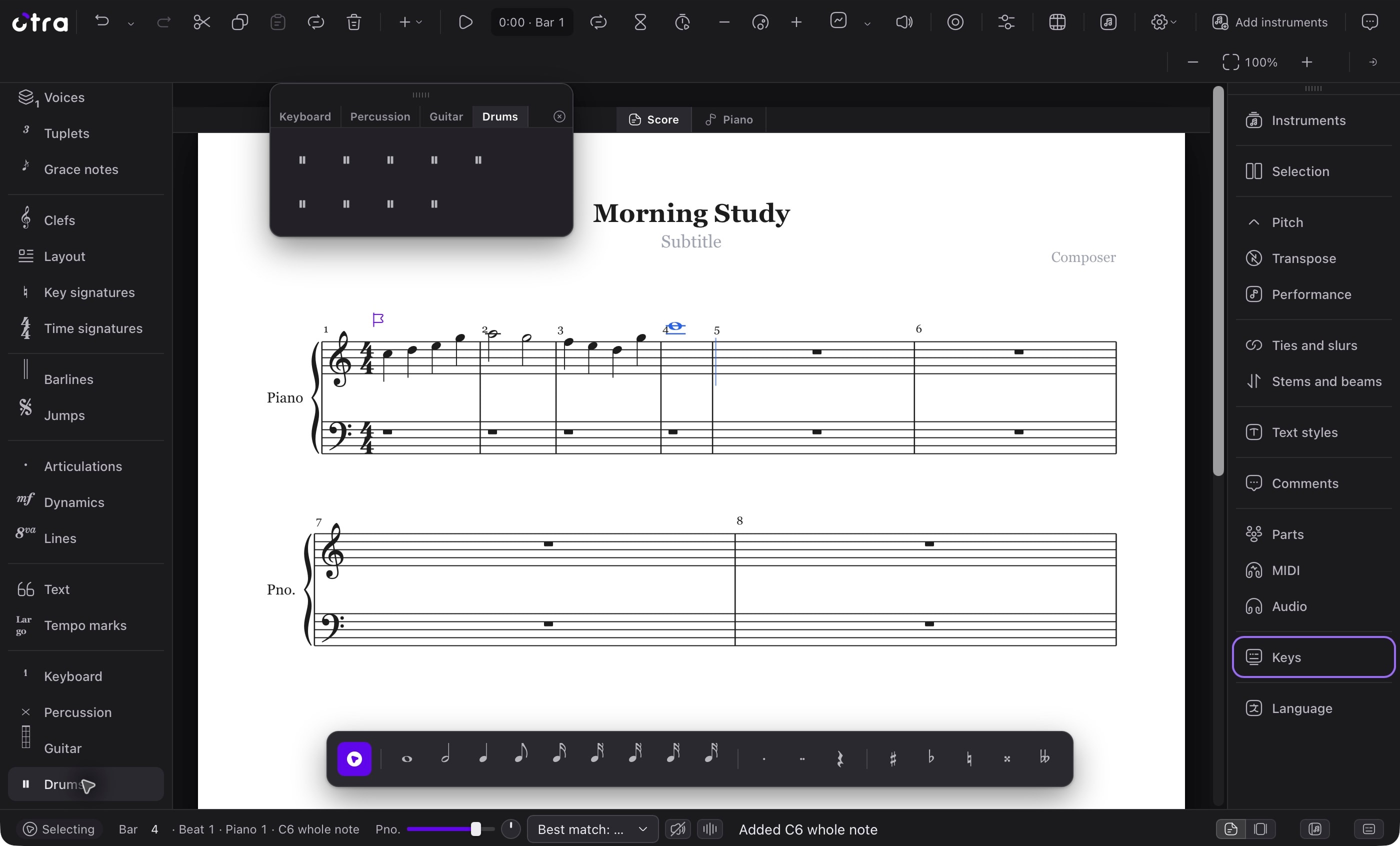
Open Drums for drum-set, Latin, orchestral and single-instrument percussion maps. The icons look similar: hover to read the map name before choosing one. Captured 23 October 2026 from the installed Mac app.
Playback, instruments, and sound
Play and stop
Choose Play, or press Space or P with the default preset. Choose Stop or press the shortcut again to stop. If Space activates a focused button instead, return focus to the score.
The transport includes loop, click/metronome, count-in, and tempo controls. L toggles Loop by default. Check the playback position and selected passage when rehearsing a section.
Hear notes while entering them
Turn on Hear notes to audition notation as you write. This is separate from Thru, which lets you hear a connected MIDI keyboard. Browsers can require a click or keypress on the page before allowing sound.
Choose an instrument and balance the parts
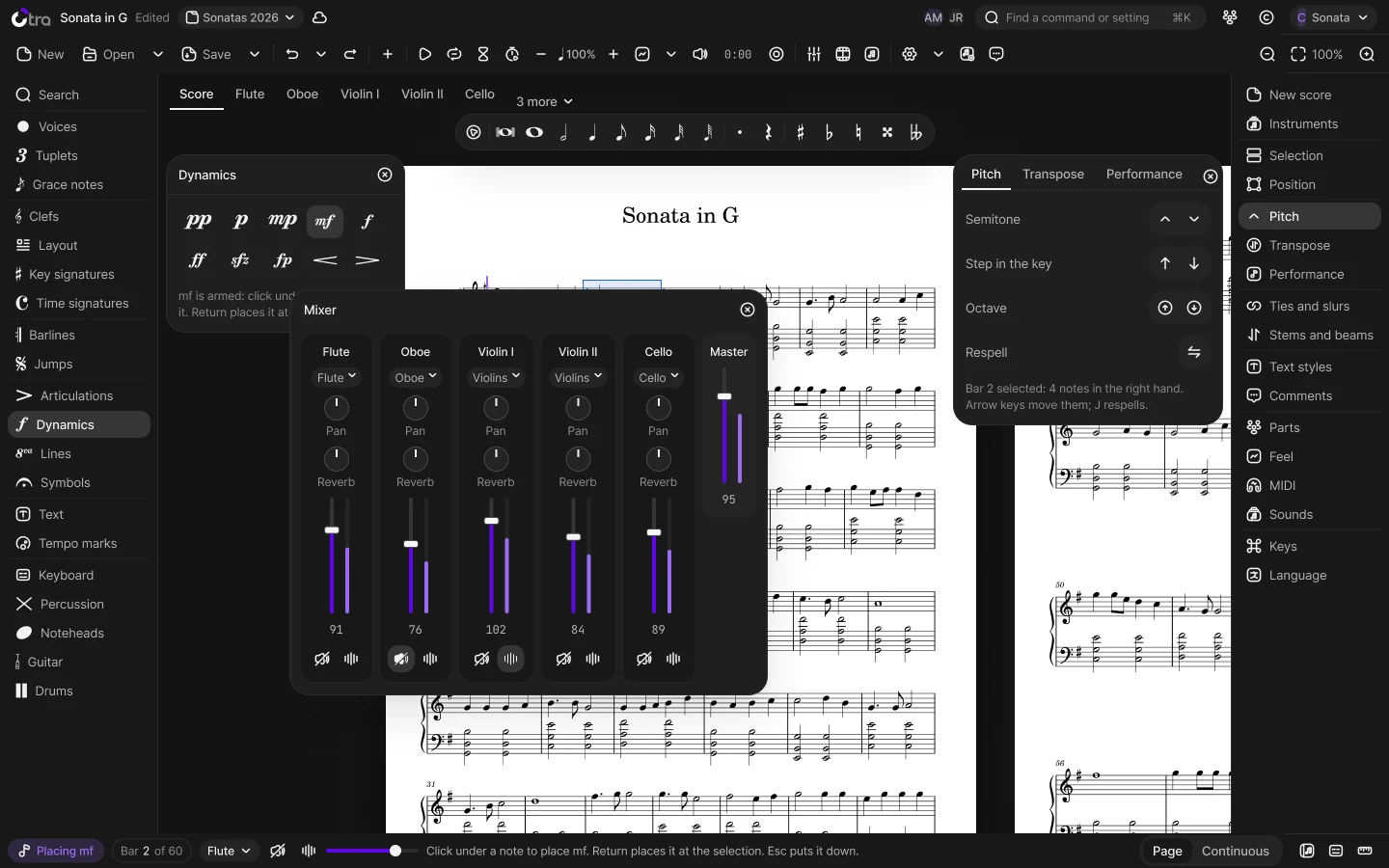
Use Instruments to choose the score's instruments. Mixer controls adjust the sound; Parts in the right dock provides mute and solo controls. If only one instrument plays, check Solo. If an instrument is silent, check Mute, its level, and its output destination.
Renaming a part is not a reliable way to change its playback instrument. Use the instrument or sound choice itself.
Use your own sounds
The editor supports adding supported SoundFont files through its sound-loading controls or by dropping a recognized sound file. Availability and loading depend on the file and your build. Keep your original sound files; do not assume that opening a score on another computer transfers its locally installed sound libraries.
Desktop builds with sound-agent support can expose additional sound and plugin controls. Use the instruments and plugins listed by that installation. A browser score cannot by itself install a plugin, license it, or provide a sound library owned by another musician.
Choose desktop audio output
When the desktop Audio panel is available, open it to choose the sound output and buffer size. A smaller buffer can reduce the delay when playing a keyboard, but can also cause crackles if the computer cannot keep up. Increase the buffer if the sound breaks up. Reconnect an output marked not connected or choose the system output.
Playback is silent
- Click Play once to allow browser audio, and wait for any sound loading to finish.
- Check the computer's output device, volume, and browser-tab mute state.
- Check part Mute, Solo, and mixer levels.
- Open MIDI and check Play through. A score sent to external MIDI needs the receiving hardware or software to produce the sound.
- Test a simple score with an available built-in instrument.
- If it still fails, report whether all scores or only this score are affected, the selected output, and any error message.
Save the score before reloading. Do not clear browser storage as a first troubleshooting step.
Mac screenshot: Part sounds
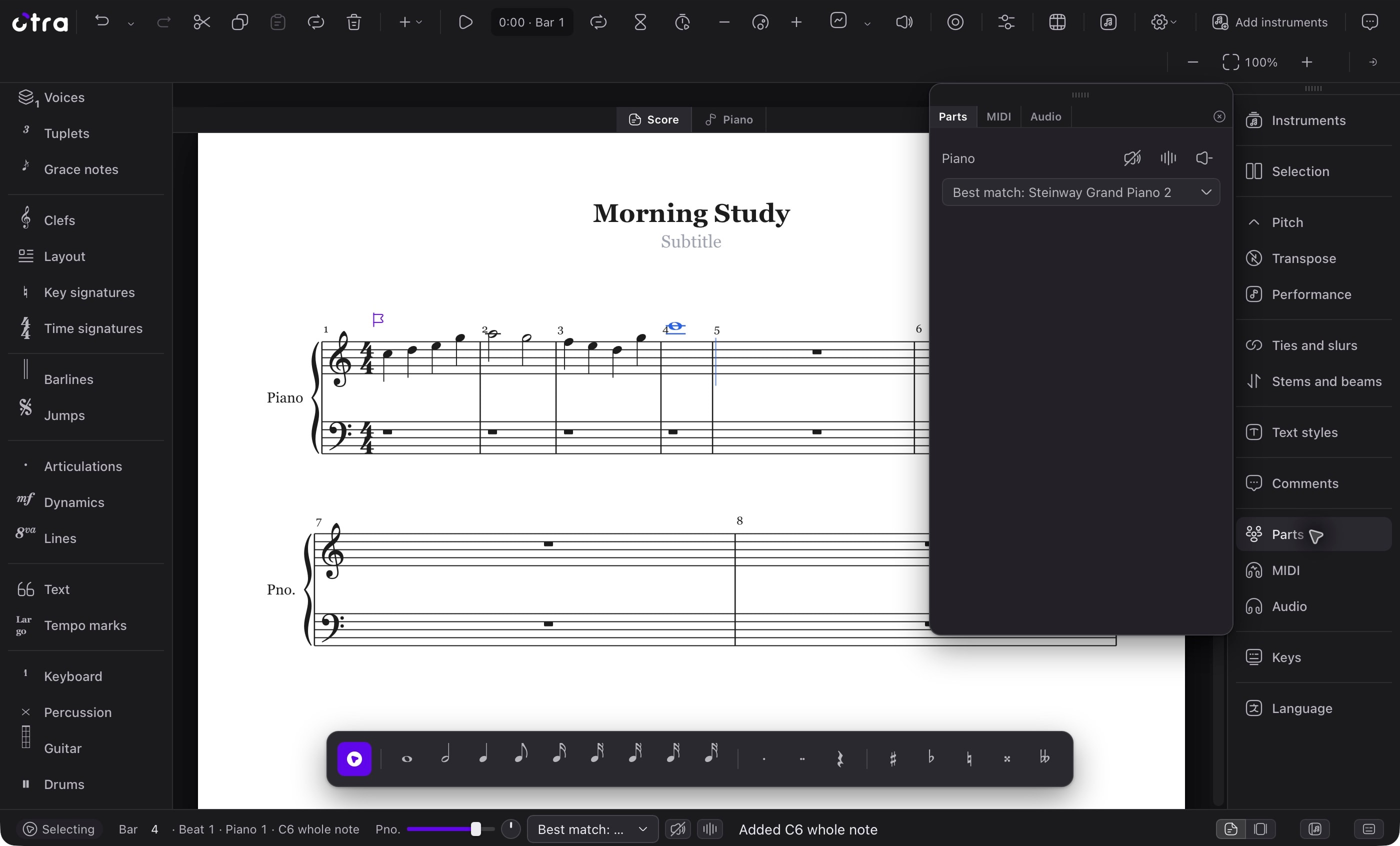
Parts provides a sound selector, Mute, Solo and Hear cue notes for each instrument. Sound-library names depend on what is installed on your computer; the pictured piano sound is not a promise of an included library. Captured 23 October 2026 from the installed Mac app.
Mac screenshot: Mac audio output
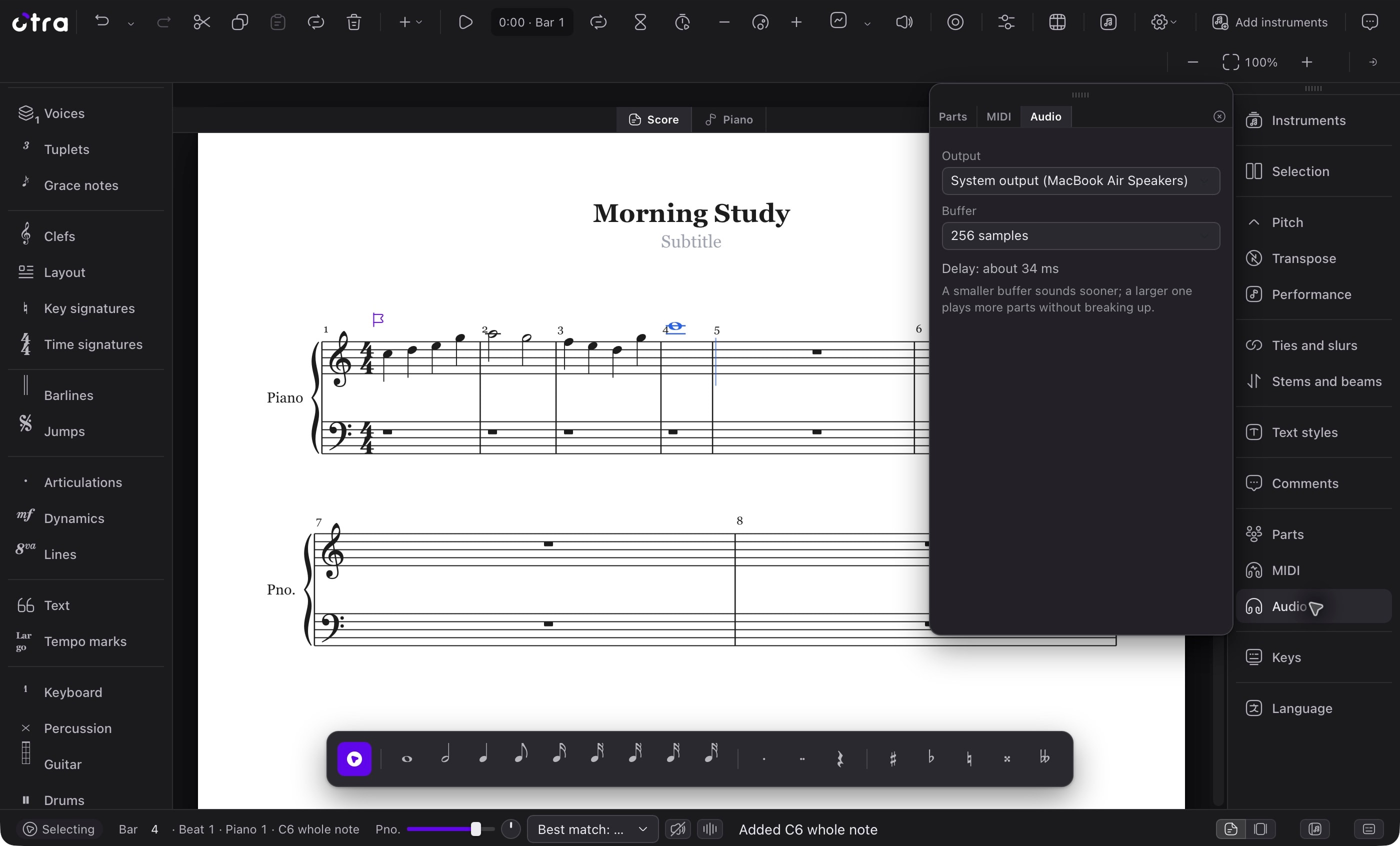
Audio shows the Output device, Buffer size and an estimated delay. The pictured device, 256-sample buffer and delay are values from this Mac, not recommended defaults or guaranteed latency. Captured 23 October 2026 from the installed Mac app.
MIDI keyboards, recording, and external playback
Connect a MIDI keyboard
- Connect the keyboard to the computer.
- Open MIDI in the right dock.
- Choose Use a MIDI keyboard and allow the requested device access.
- Confirm that the keyboard appears in the list.
- Turn on Thru if you want to hear the keyboard through O'tra.
If the browser reports MIDI as unsupported, normal score playback can still work. Device support depends on the browser and installed app. If access is blocked, allow MIDI in the browser's settings for the site and choose Try again.
Enter notes one step at a time
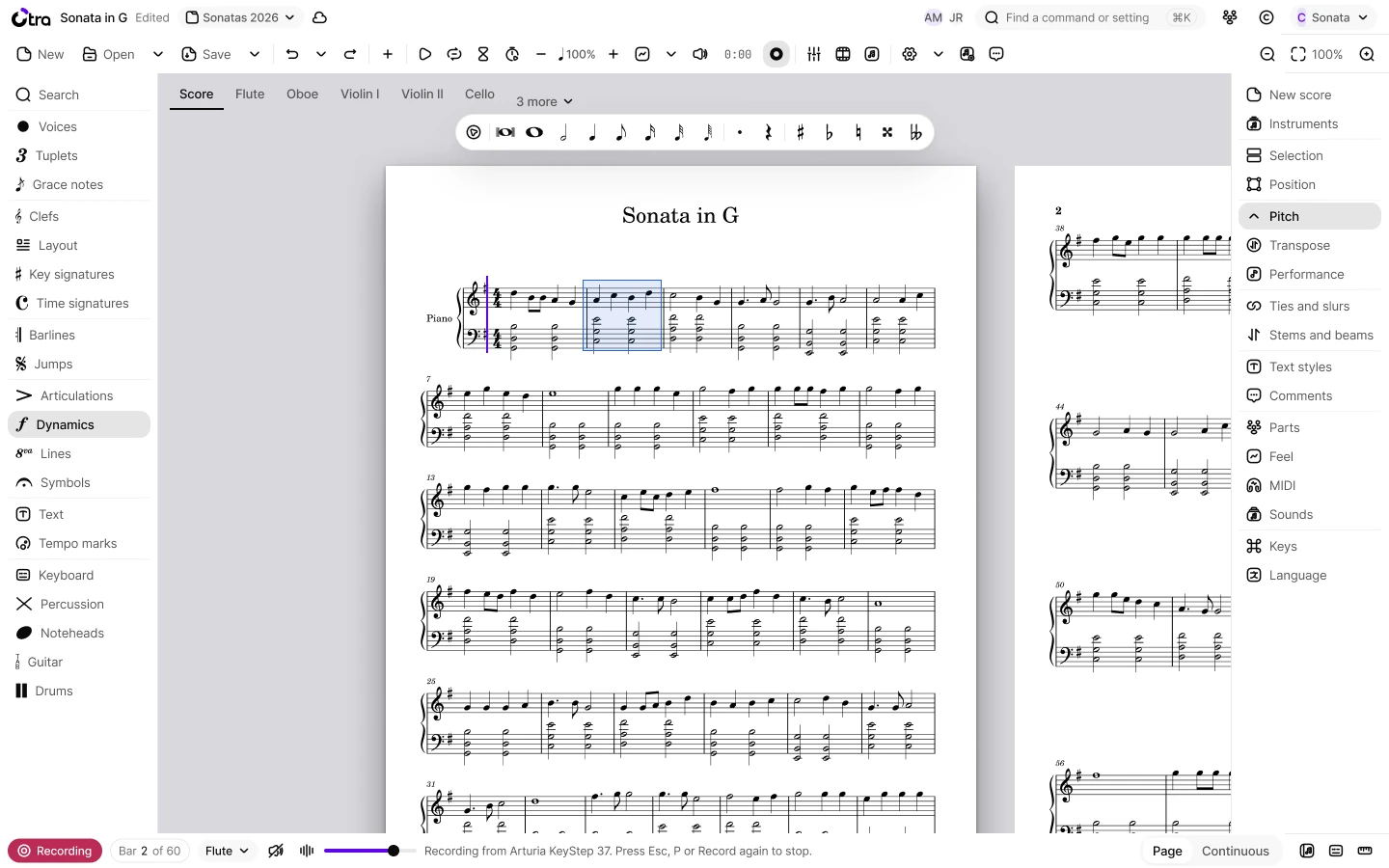
Stop playback, choose a note value, and position the entry cursor. Play a key to write that pitch with the chosen duration. Hold keys together to make a chord. Step-time entry requires writing mode; an active symbol tool can prevent note entry.
Record in real time
- Connect and allow the MIDI keyboard.
- Put the cursor in the bar where recording should start.
- Check the tempo and recording setup.
- Choose Record, or press Shift+R.
- Play after the count-in, using the click to keep time.
- Choose Record again or Stop, or press Esc, to finish.
- Inspect the written rhythm and listen back. Undo and try again if needed.
This records MIDI performance into notation. It is not microphone recording, audio transcription, or a promise to turn a sung melody into a score.
Play through a synth or DAW
In MIDI, use Play through to choose O'tra’s sounds or a connected MIDI output. A score with several parts can route individual parts separately; as the score follows the score-wide destination.
MIDI carries performance messages rather than recorded audio. The receiving synth or DAW must be configured to accept and sound them. A destination marked not connected must be reconnected or replaced.
Fix keyboard input problems
If no keyboard appears, check the cable, power, operating-system device availability, and site permission. If it appears but writes no notes, check writing mode, cursor position, note value, and whether playback or recording is running. If it writes notes silently, enable Thru and click the page once to allow sound.
Where available, Fast thru reduces the desktop input-to-sound path. It depends on desktop support and requires Thru to be on.
Mac screenshot: MIDI connections
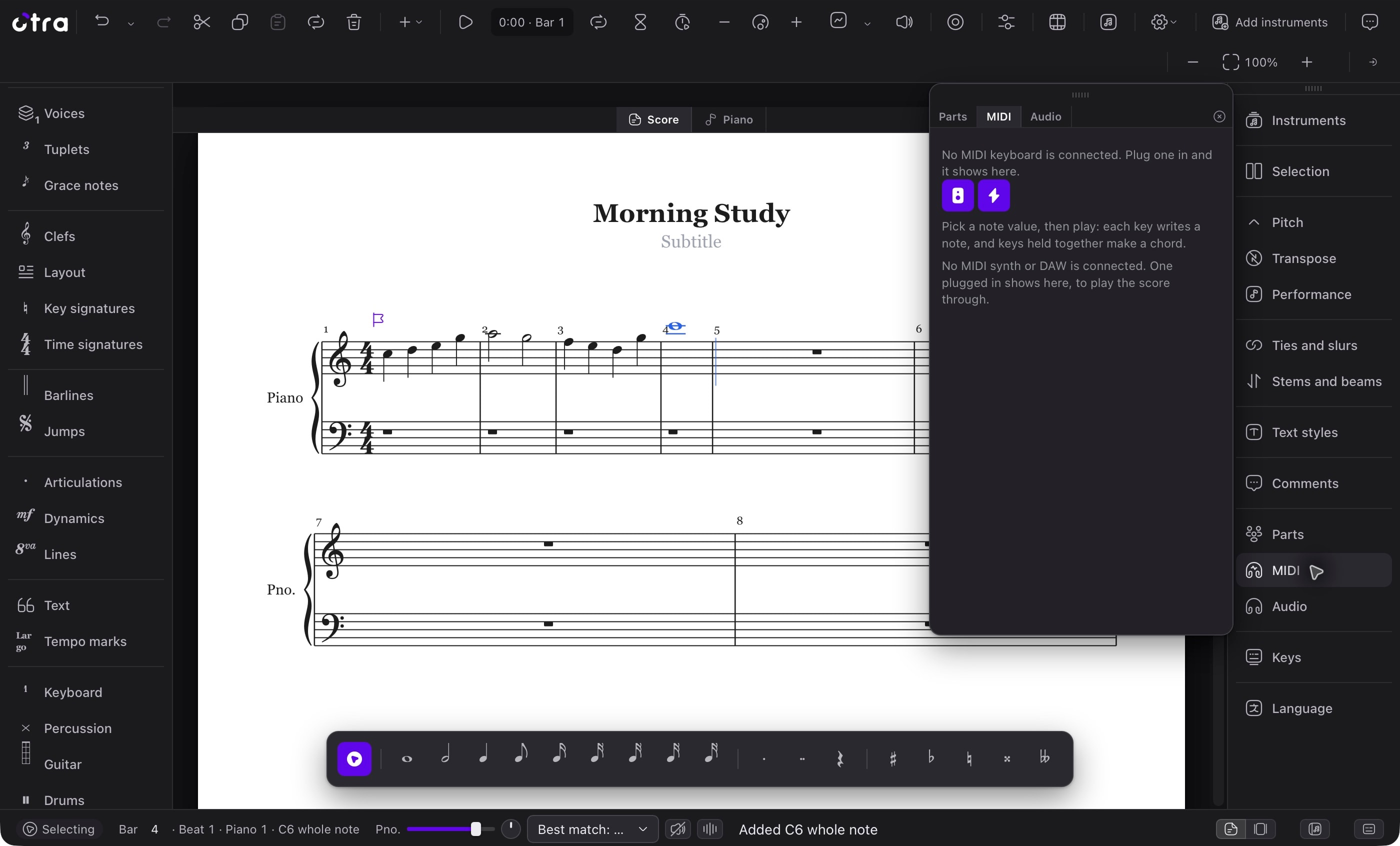
MIDI shows connected keyboards and playback destinations. This capture has no MIDI hardware connected; Thru and Fast thru are visible, but hardware input and recording were not tested. Captured 23 October 2026 from the installed Mac app.
Fine-tune performance and use the piano roll
Change how selected notes play
Select notes and open Performance in the right dock. The panel offers:
| Control | Meaning |
|---|---|
| Velocity | How strongly the note is played |
| Start | An earlier or later start, measured in sixty-fourth-note units |
| Length | Sounding length as a percentage |
| Play as written | Remove the selected notes' performance overrides |
These controls shape playback without requiring you to rewrite the printed note value. Use duration controls when the notation itself should change.
To make a phrase quieter, select the phrase and reduce Velocity, then listen. To restore the normal interpretation, select the notes and choose Play as written.
Use the piano roll
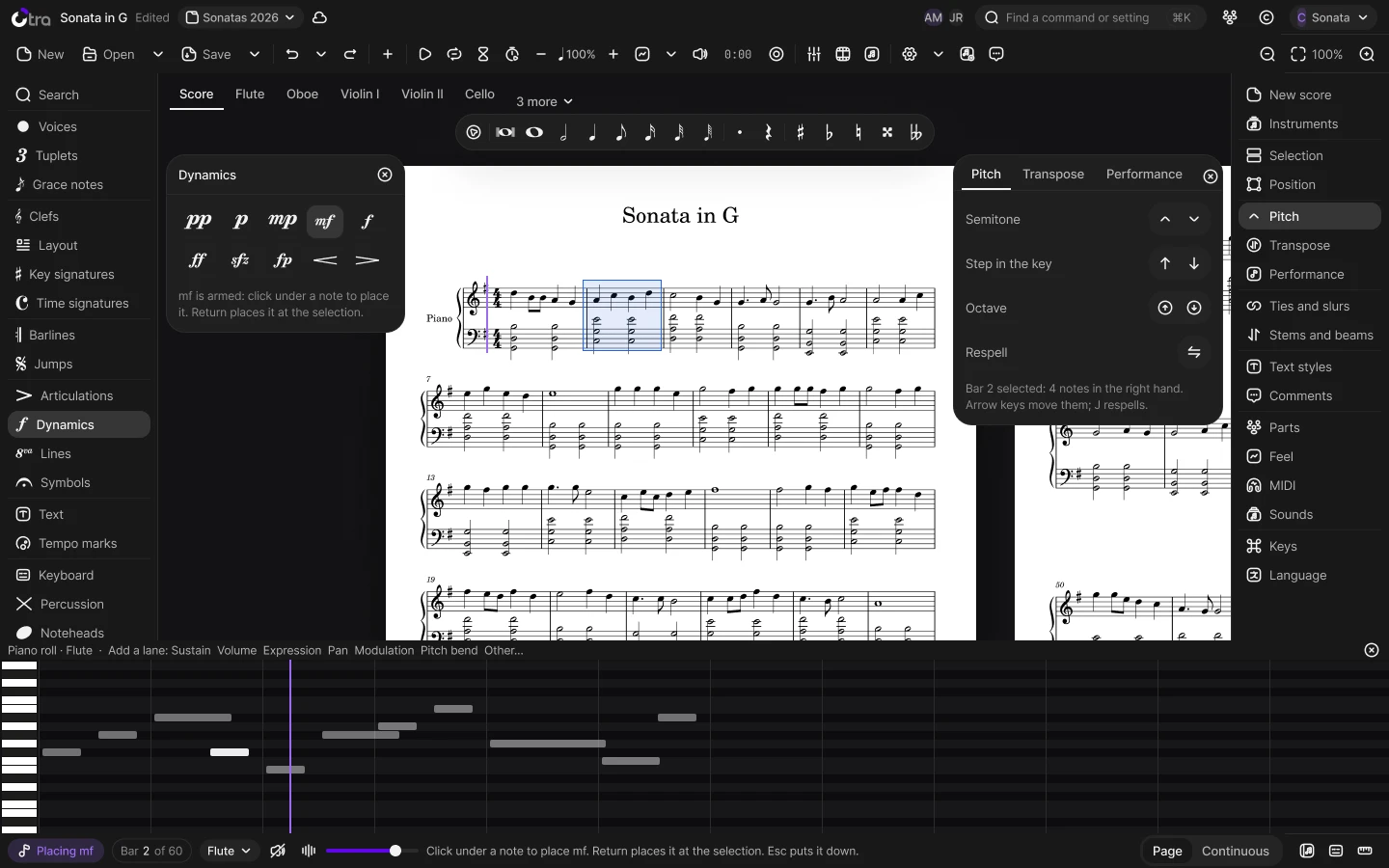
Show the piano roll using the editor's piano-roll control. It displays notes against pitch and time and supports performance editing. Select the intended notes before adjusting them; use the score view to check whether you changed the musical notation or only its playback treatment.
Drag the divider to change the piano roll's height, and use its close control when finished.
Add controller lanes
The piano roll includes Add a lane controls and a controller-number field for MIDI controller numbers from 0 to 127. Use controller lanes when a supported instrument needs changing performance instructions over time.
An external instrument may interpret a controller differently from O'tra’s built-in sound. Test the actual destination. A visible controller lane does not establish support for every possible plugin-specific parameter.
Why does a note sound shorter or later than it looks?
Check Performance for start or length overrides, then check articulations, ties, tempo, and the sound itself. Choose Play as written if you want to remove the selected notes' overrides. Use Undo to compare before and after.
Mac screenshot: Performance controls
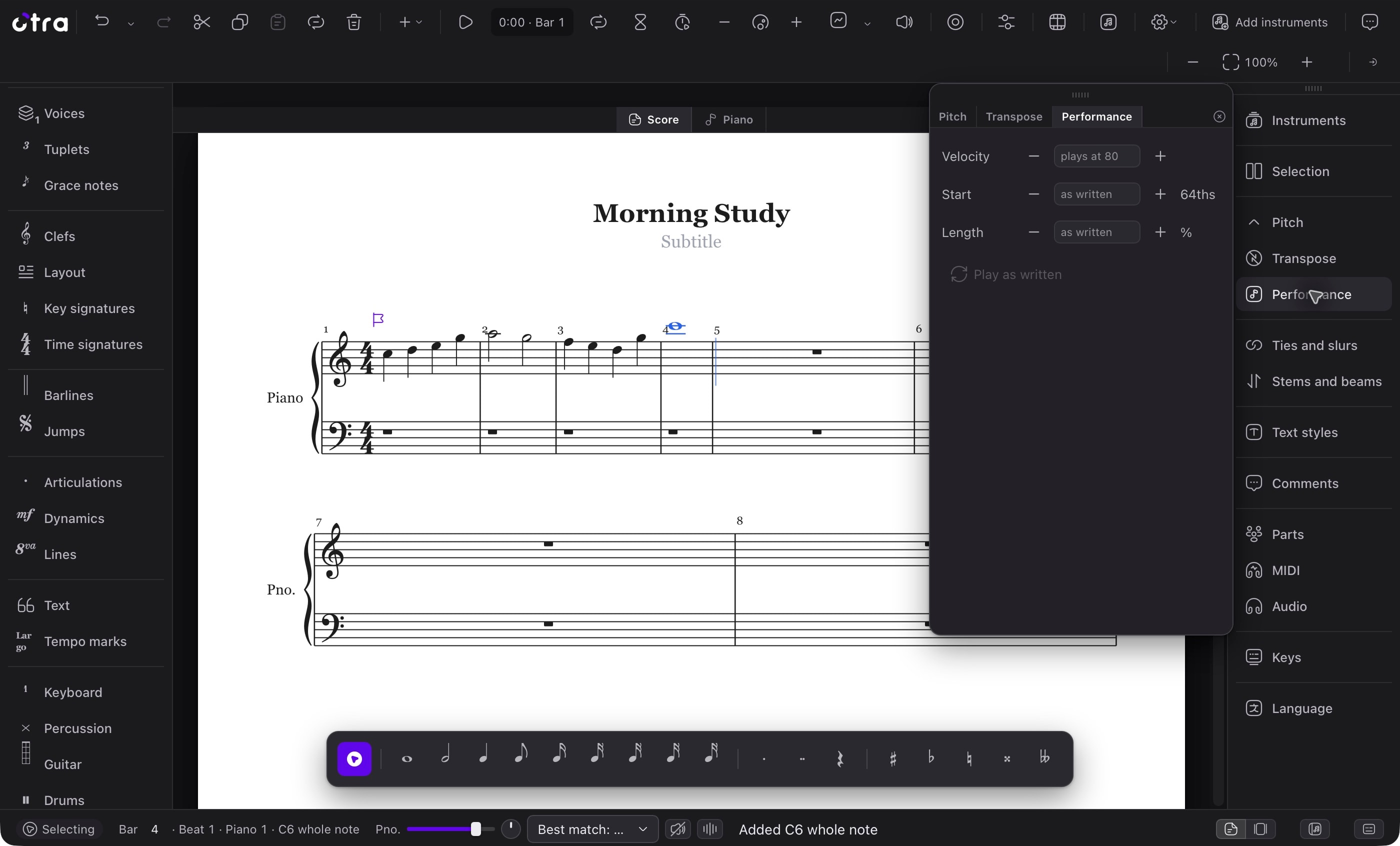
With a note selected, Performance provides Velocity, Start and Length. Play as written removes overrides when applicable; it is disabled here because the selected note has no override. Captured 23 October 2026 from the installed Mac app.
Page layout, linked parts, printing, and images
Set up the printed page
Open Score → Page setup…. Set the paper size, orientation, units, margins, and available staff or system layout values. Review the page as you change it. Choose OK to keep the changes or Cancel to discard that setup visit.
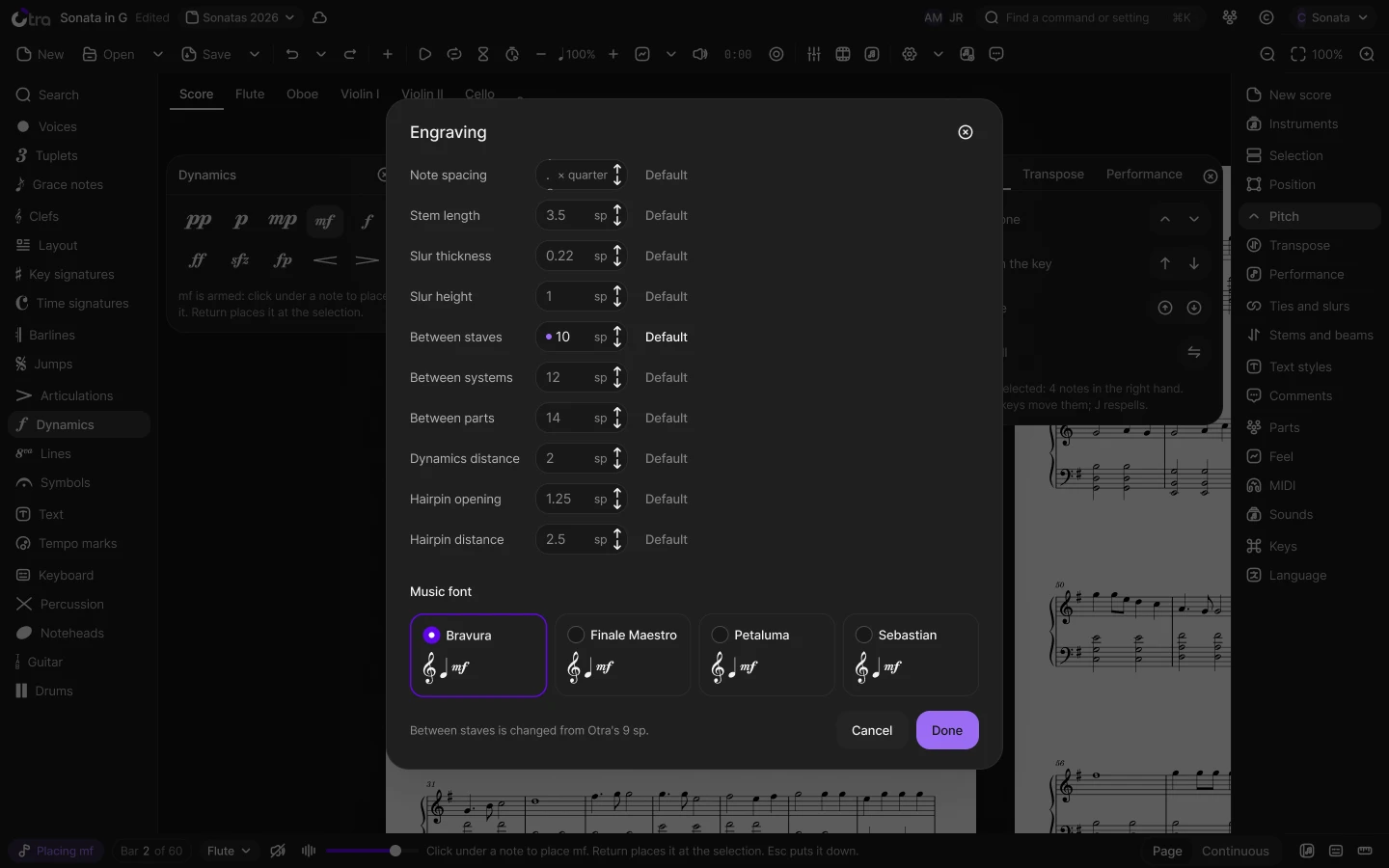
Use layout tools for system and page breaks. Use Score → Engraving… to adjust note spacing, stem and slur settings, staff distances, dynamics spacing, and hairpin appearance. Change one group of settings at a time and inspect the result.
Zoom and view the score
Use the zoom controls to inspect notation without changing the paper size. Check Keys for any Show entire score binding in your version. Choose the available page or continuous-view controls according to whether you are preparing printed pages or reading along.
Changing screen zoom does not make the printed music larger; use page and staff-size settings for that.
Open an instrument's part
Choose its tab above the score. The Score tab returns to the full score. Linked parts share the same music: editing notes in a part edits the full score too. Each part can retain its own layout.
Before exporting a transposing instrument's part, check Concert pitch. The chosen view affects graphical output.
Export a PDF
On Mac, open File → Export. In the web editor, open the arrow beside Save. Choose the appropriate entry:
- Export PDF of the score for the full score.
- Export PDF of this part when a part is open.
- Export PDF of all parts for a ZIP containing a PDF for each part.
Open the result and check page breaks, titles, accidentals, and any manual positioning before distributing it.
On Mac, choose File → Print…; in the web editor choose Print… from Save as and export, or use Ctrl/Command+P. Check the print dialog's paper size and scaling. If the output is clipped or unexpectedly small, compare the printer's settings with Page setup and inspect an exported PDF.
Export SVG or PNG
Choose Export SVG for scalable vector artwork or one of the Export PNG at … dpi entries for a raster image. SVG and PNG export the open view. Several pages are packaged in one ZIP. Check which part or score is open before exporting.
My score looks different in another notation app
Use a PDF when the recipient needs the page appearance. Use MusicXML when the recipient needs editable notation; the receiving app lays the score out using its own rules, so spacing and page breaks may differ.
Mac screenshot: Page setup
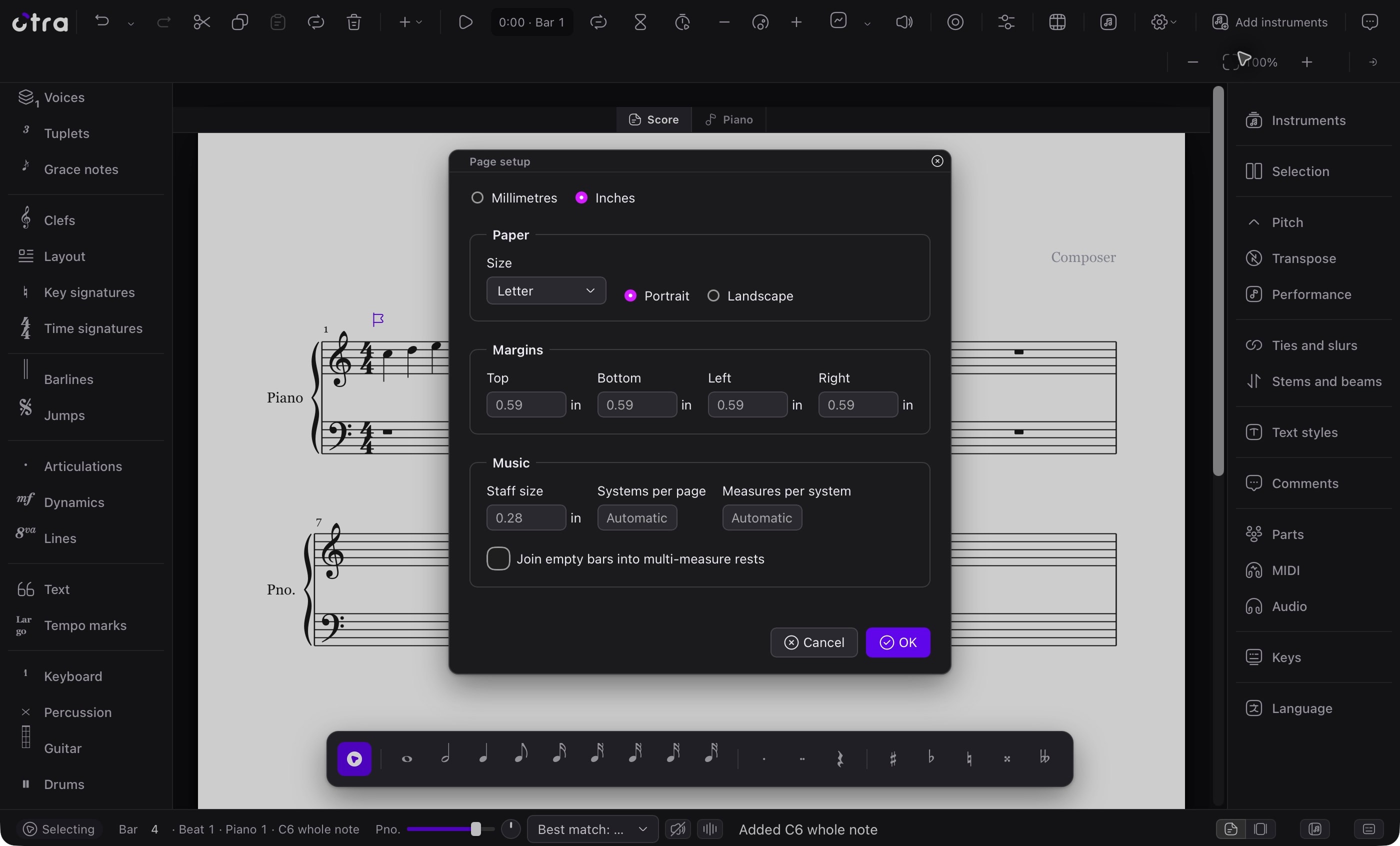
Score → Page setup opens paper size, orientation, margins, staff size and system settings. OK keeps the visit; Cancel discards it. No page settings were changed for this capture. Captured 23 October 2026 from the installed Mac app.
Mac screenshot: Layout tools
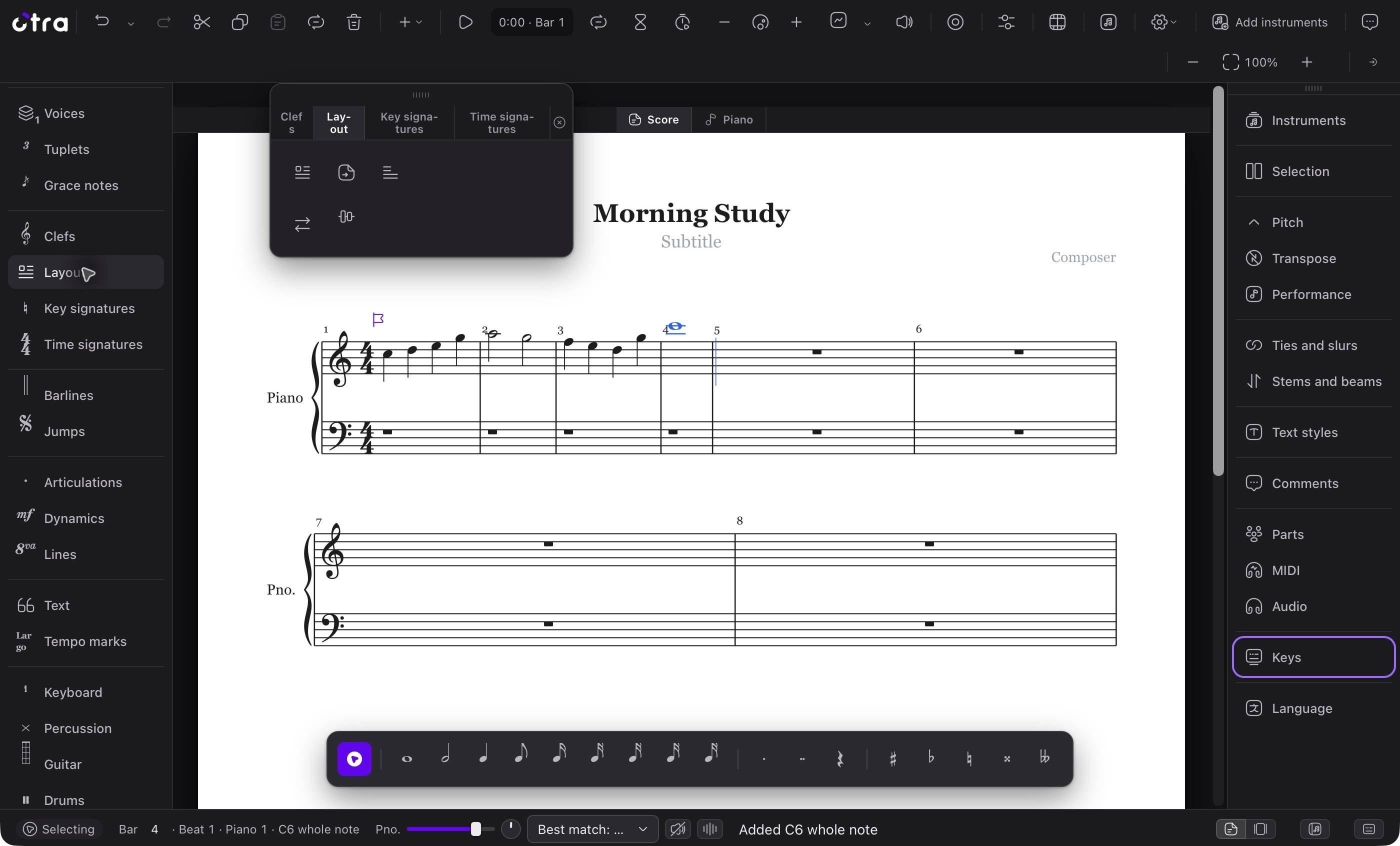
The Layout palette provides System break, Page break, No break, Wider measure and Narrower measure. Hover over the icons for their labels. Captured 23 October 2026 from the installed Mac app.
Save, autosave, recover, and work offline
Understand the three ways your score can be kept
| Method | Where the score goes | What to check |
|---|---|---|
| Save / Save as | An O'tra file on disk, or a browser download | The saved/downloaded message and the actual file |
| Local autosave | Storage belonging to this browser or app | Your scores in the same environment |
| Cloud save | Your signed-in O'tra account, when available and accepted | The cloud status beside the title |
These are different copies. Local autosave does not mean an existing disk file has been rewritten, and a local copy does not prove cloud sync succeeded.
Successful cloud saves keep an imported original and its conversion baseline privately with your account. Open a cloud score or an earlier version to recover the original through Things to check. View links, embedded players and invited editors receive only the editable score. Original files count toward your storage limit; if an upload is refused, keep your local O'tra file. Restoring notation keeps the current document’s original; open the earlier version separately to recover its original.
Save a file you control
Choose Save or press Ctrl/Command+S. Use Save as under the arrow beside Save for another file location or copy. Where supported and permitted, later saves write to the chosen file; otherwise the browser downloads a file.
Read the status line. If O'tra says the browser would not save to the chosen folder and downloaded instead, look in Downloads. Keep the native O'tra file as your editable working copy and export other formats for sharing.
How local autosave works
O'tra schedules local autosave shortly after editing, normally about one second after the last change, and attempts to keep the score when the page is hidden. On a later visit it can reopen the last locally kept score when that score is not held by another window.
An abrupt shutdown, unavailable storage, cleared site data, a private session, or a different browser profile can prevent recovery. Save a disk copy for important work.
Recover a score
- Return to the same app or browser profile used to write it.
- Open Your scores from the arrow beside Open.
- Check recent locally kept scores and the full list.
- Check saved O'tra files and Downloads.
- If you used cloud saving, sign in to the same account and check the available cloud entries.
Do not erase site data while trying to recover a locally stored score. If no copy appears, tell support the last known title, approximate edit time, device, and where you last saw it saved. Recovery is not guaranteed.
Remove locally kept scores
The full Your scores list can remove individual scores or scores not kept for 30 days. Bring back restores removals made during that open dialog. Use it before closing the dialog; it is not a permanent trash or a promise of later recovery. The old-score control is a manual action, not a statement that every score is automatically deleted after 30 days.
Work offline
The browser app can cache application resources for offline use after an online visit. Offline availability depends on what has already loaded and whether the browser retains it. Open the app and required sounds online before relying on them offline, and test your intended workflow before disconnecting.
Sign-in, checkout, cloud access, and other server actions require a connection. After reconnecting, check the cloud status; do not assume a failed upload has already retried successfully. Save a local file first if status remains uncertain.
Update O'tra
When the app offers an update and reload, save important work first. Reopen the score and verify the latest changes after the update. Do not reset browser storage just to force an update without first preserving locally kept scores.
Import, export, and move scores between apps
Formats the editor opens
Use Open or drop a supported score onto the editor:
| Input | Use |
|---|---|
| O'tra score | Resume a native editable score |
| MusicXML, including compressed MXL | Exchange notation with another notation application |
| MIDI | Import musical performance data for notation |
Supported Encore .enc files |
Convert older notation for continued work |
| Dorico, Finale MUSX, MuseScore and MusicTime | Open supported native layouts. See format limits and edited copies. |
An extension alone does not prove the file is a readable score. If O'tra cannot open a file, keep the original and report the exact message and producing program/version. Do not rename a PDF, image, audio file, or unsupported notation file to .enc or .musicxml; that does not convert it.
Review an imported score
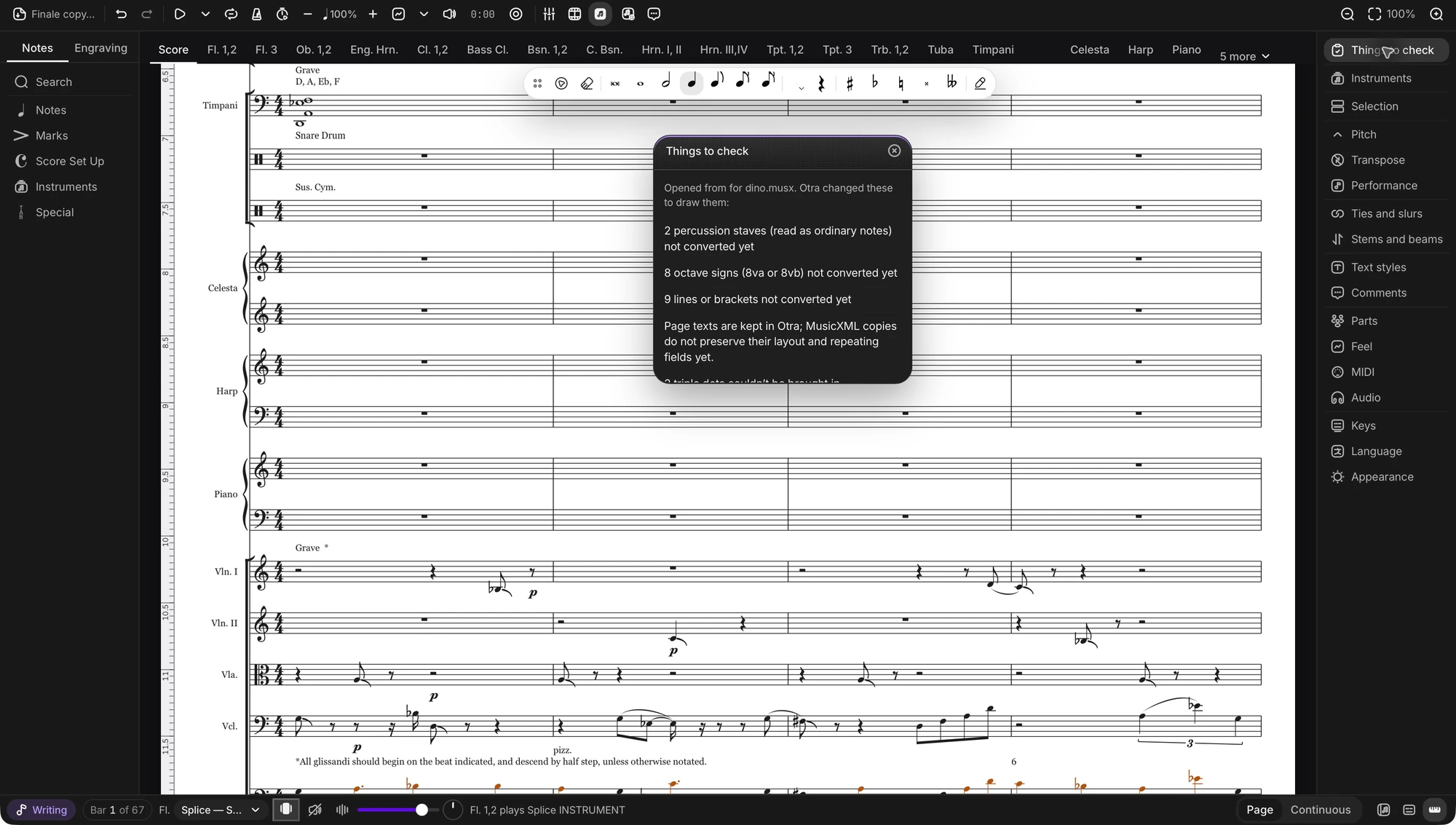
After opening a score from another program, check Things to check in the right dock. Review the reported items against the source, then inspect pitches, rhythms, voices, lyrics, repeats, instruments, and page layout. Play the score as another check.
A successful import does not guarantee a visually identical or complete conversion. Save the converted work as an O'tra score and retain the original independently.
Import MIDI
MIDI describes pitches, timing, and performance messages. It does not contain the same engraving information as a notation format. Check interpreted note lengths, voices, percussion, and tempo after import. Prefer MusicXML when you need notation interchange and the source program can export it.
Export editable notation
Open Save as and export and choose Export MusicXML…. The editor writes compressed MusicXML (.mxl). Import the result into the receiving notation program and review its layout and any conversion warnings.
Choose Export MIDI file… for performance exchange. MIDI is not a printed score and does not include the sound of your chosen instrument as recorded audio.
Export audio
Choose Export WAV or Export MP3 from Save as and export. The export shows progress and offers cancellation. Check Mute and Solo first because the audio export uses audible parts.
The implemented WAV output is stereo, 16-bit, 44.1 kHz. MP3 uses stereo at 192 kbit/s and can include title and composer tags. External hardware MIDI audio is not automatically recorded into these files. Audition exports that depend on local sound libraries or plugins on the actual system.
FLAC is not an export entry in the documented editor. Use an available export rather than looking for a planned format.
Convert an Encore folder in the editor
Where folder access is available, choose Convert a folder of Encore files… from the Open menu or drop a folder. Review Converted files and the conversion report. The archive workflow writes a folder on desktop or a ZIP in the browser, preserving the collection for review. This is separate from the standalone Rescue licensing and download workflow.
Choose the right output
Use an O'tra file to keep editing in O'tra, MusicXML for editable notation elsewhere, MIDI for performance instructions, WAV/MP3 for listening, PDF for printing, and SVG/PNG for page artwork. Keep the native working file even after exporting.
Accounts, cloud scores, plans, and sharing
Sign in
Open Sign in. The public web interface inspected on 23 October 2026 offers Continue with Google, Continue with Apple, and an email field with Email me a link. Choose an available option for your account. Never share a sign-in link with another person.
If sign-in fails, keep the exact error and contact support. Do not assume different email identities share stored scores. The presence of a sign-in option does not establish that the provider is currently available.
Keep a separate saved file
Save an O'tra file to your computer before relying on cloud storage or changing accounts. A local recovery copy is not confirmation of cloud sync. If a status says the score is kept only on this computer, preserve the disk copy and include the exact status when contacting support.
Sharing and editing access
A view link is read-only. To work on the same score, its owner chooses Invite to edit and sends the invitation. Sign in with an account that can edit. See Editing together.
Plans and billing help
Use current terms shown for your account and the correct product. O'tra editor access, an O'tra Rescue licence, and an editor preorder must not be assumed interchangeable. If payment succeeded but access did not update, keep your receipt and contact support before paying again.
For cancellation, refunds, account deletion, or data requests, contact the support team through the product or receipt. A support bot cannot confirm a charge, cancel a plan, or approve a refund unless an authorized account integration actually completes the action. This guide does not establish a universal trial, refund, or retention policy.
O'tra Rescue: convert Encore files
Current availability, checked 23 October 2026: Open O'tra Rescue. The public site identifies Encore 5 as the supported input family; Encore 4 and MusicTime are described as upcoming. Keep originals and try a representative file. Protected files need to be saved again as an ordinary file in Encore before trying conversion.
Purchases: The inspected converter returned “Checkout isn’t open yet.” A purchase cannot be completed through that path while this message appears. Contact support@otramusic.com for purchase or licence questions. Do not treat the message as confirmation of payment. The public pages show inconsistent offers, so this guide does not quote an approved price or billing period.
O'tra Rescue is the dedicated browser converter for supported Encore .enc files. Its conversion workflow is separate from the full O'tra notation editor and from the editor's subscription account.
Convert a file or folder
- Open the Rescue converter.
- Drop
.encfiles or a folder onto the drop area, or use the file/folder selection controls. - Wait for the file list and results.
- Click a file to preview its pages.
- Read that file's report and inspect any items needing attention.
- Use Convert this one free for an available free conversion, or Download ZIP when your Rescue licence permits the batch download.
- Extract the ZIP and open the resulting MusicXML or MIDI in your chosen music program.
The documented converter packages MusicXML and MIDI with a report and preserves folder organization. Its visible page preview is not the same as a PDF export button. For a PDF workflow, open an appropriate score in the full editor and use its PDF export.
What can I try free?
The documented Rescue interface lets you preview files and use one free conversion on the device. Once used, the interface identifies that conversion and marks further downloads as needing Rescue. Check the current offer shown in your converter; do not assume an editor subscription or preorder is a Rescue licence.
Use a Rescue licence key
Open the Rescue licence panel, paste your key into Licence key, and choose Use key. A valid key shows its product and expiry date. Keep a copy somewhere safe; a key remembered on one device may need entering again elsewhere.
If the key is refused, compare it with the receipt and read the reason. An expired, refunded, or cancelled purchase may no longer unlock conversion. A network error is different from a rejected key. Retry a connection failure before assuming a new purchase is necessary.
If checkout says it is not open yet, it cannot complete a purchase at that time. Follow the offered notification option or ask support; do not treat this message as a completed order.
Understand conversion results
Converted. Nothing to check. means the converter did not flag a review item; it is still sensible to compare important music against the original. A warning means some notation may need checking or correction. A failure means the file did not convert successfully. Review skipped and failed counts before assuming a ZIP contains the whole collection.
Support varies by the actual .enc file layout. A filename or age alone does not guarantee support for every Encore or MusicTime version. Try a representative file first and retain the original files.
Request a conversion fix
Use Request a fix beside the affected result. The report is sent to the team. The checkbox Include the Encore file so we can reproduce it is optional and starts unchecked. Check it only when you want to upload that source file. You can enter an email address for the answer.
Ordinary conversion processes the file on your computer. A fix request sends report information, and explicitly including the file uploads it. Account, licensing, and purchase services also involve network requests; local conversion does not mean every part of the service is offline.
For licence or purchase help, use the support contact shown in the Rescue licence panel or receipt. Confirm the current displayed refund terms with the team; a bot should not claim to have approved or issued a refund.
Troubleshooting O'tra
Start with a safe check
Save a local O'tra file if possible. Record the exact error message, product (editor or Rescue), browser or desktop version, operating system, and the action that caused the problem. Test a small new score to see whether the issue affects one file or the whole app.
Do not clear browser data, remove locally kept scores, or reinstall before preserving work you need.
I click but notes do not appear
Choose a duration to enter writing mode. Check the staff, voice, and whether a symbol or text tool is active. A read-only account or shared view cannot edit. The status line can explain why an operation was refused.
I want to select a note but create another one
Choose Select or leave the active entry tool with Esc, then click the existing note. If a popup or text editor is open, close it first.
A keyboard shortcut does something unexpected
Open Keys to check the active preset and personal assignment. Leave text fields and dialogs before trying again. Browser or operating-system shortcuts can also take precedence. Use the equivalent visible control while diagnosing the key.
My file is missing after Save
Read the status message. A browser may have downloaded the file instead of writing to the selected folder. Check Downloads, the filename, and the current browser profile. Autosave is separate from a disk save.
O'tra says the file changed outside the app
O'tra has left the disk file untouched. Choose Save as and a different name to keep your current work. Your edits and Undo history stay available. Compare the two copies before replacing either one. If the original destination cannot be read, O'tra asks for a destination again.
My score is missing after reopening
Check Your scores in the original browser profile, saved O'tra files, Downloads, and the correct cloud account. If it is open in another window, return there. Do not erase site data. Ask support for recovery help without assuming that every unsaved edit can be recovered.
The cloud is not up to date
Check the indicator beside the title, connectivity, account standing, and any quota message. Save a local file. Reconnect and verify the synced state; if it remains local, report the exact reason and last successful save. Avoid editing competing copies on several devices while resolving the discrepancy.
An imported score is incomplete or wrong
Open Things to check and compare the reported measures with the original. Use Save original file (without edits)… there to retrieve the exact imported file kept with your local O'tra score. Later edits are not included in that copy. Changes since import lists your current edits by instrument and bar. Click a current bar to select it; removed bars are labelled as removed. Undo removes reverted changes from this list, and the list survives saving and reopening a local O'tra file. Older files without a usable imported baseline say that the comparison is unavailable. This report does not enable saving edits back into the original program’s format. Keep both original and converted files. Report the source program/version, extension, affected instrument and measures, and expected versus actual notation. For Rescue use Request a fix; including the source file is optional.
Playback is silent or wrong
Check output volume, the browser's audio permission or mute state, sound loading, part Mute/Solo, and MIDI routing. Test an available built-in instrument. For timing differences, inspect Performance overrides and tempo/repeat notation.
A MIDI keyboard is not detected
Check the connection and power, open MIDI, allow device access, and confirm the device appears. If the browser says MIDI is unsupported, the keyboard workflow is unavailable there even though score playback can work.
Printed or exported pages look wrong
Check which score or part is open, Concert pitch, Page setup, and print scaling. Export a PDF and inspect it before printing. If another notation app changes spacing after MusicXML import, compare musical content separately from that app's layout.
A shared link does not work
Check the complete link. If O'tra says it is no longer shared, request a current link from the score's owner. A shared view is read-only; Make your own copy creates separate editable music when available.
I paid but cannot edit or download
First identify the purchase: an editor plan, a Rescue licence, or another product. Check the account email or licence panel, keep the receipt, and report the exact status. Do not pay again just to test it. A human with account access must investigate payments the bot cannot verify.
What should I send support?
Include the product and version, OS/browser, exact message, short reproduction steps, expected result, actual result, and whether a new score reproduces it. Include a screenshot if it helps. Share a source score only if needed and you are comfortable providing it. Never send passwords, sign-in links, full payment-card details, or unrelated private files.
Default keyboard shortcuts and customization
These shortcuts describe the default O'tra preset. Open Keys to see the active bindings; presets and personal changes take precedence. In this article, Ctrl/Command means Ctrl on Windows and Command on Mac; Alt/Option means Alt on Windows and Option on Mac.
Files and editing
| Action | Default |
|---|---|
| Open | Ctrl/Command+O |
| Save | Ctrl/Command+S |
| Save as | Ctrl/Command+Shift+S |
| Ctrl/Command+P | |
| Undo | Ctrl/Command+Z |
| Redo | Ctrl/Command+Shift+Z; Ctrl+Y |
| Cut / Copy / Paste | Ctrl/Command+X / C / V |
| Delete selected music or object | Delete or Backspace |
| Repeat | R |
Notes and pitch
| Action | Default |
|---|---|
| Whole / half / quarter / eighth | 7 / 6 / 5 / 4 |
| 16th / 32nd / 64th | 3 / 2 / 1 |
| 128th / 256th | 8 / 9 |
| Write a rest at the cursor | 0 |
| Switch mouse entry to rests | Shift+0 |
| Dot / double dot | . / Shift+. |
| Enter a pitch | A–G |
| Sharp / flat / natural (inspected Mac app; absent in inspected web build) | + / - / = |
| Next voice | V |
| Triplet | Alt/Option+3 |
| Up/down a semitone | Up/Down |
| Up/down a scale step | Alt/Option+Up/Down |
| Up/down an octave | Ctrl/Command+Up/Down |
| Enharmonic respelling | J |
| Tie / slur | T / S |
Playback, text, and navigation
| Action | Default |
|---|---|
| Play or stop | Space or P |
| Loop | L |
| Go to bar | Ctrl/Command+G |
| Piano roll | Shift+O |
| Piano keyboard | Shift+K |
| Page / continuous view | Shift+P |
| Mixer | M |
| Concert pitch | K |
| Record MIDI | Shift+R |
| Lyrics | Ctrl/Command+L |
| Chord symbol | Ctrl/Command+K |
| Text | Ctrl/Command+T |
| Rehearsal mark | Ctrl/Command+R |
| Zoom in/out | Ctrl/Command plus + or - |
| Add a measure at the end | Ctrl/Command+B |
| Insert before selection | Ctrl/Command+Shift+B |
| Delete selected measures | Ctrl/Command+Alt/Option+Backspace |
Customize keys
Open Keys in the right dock. Choose the desired preset, use Find a command or a key, and select an existing key to change it or Add a key to assign another. Use the displayed conflict information to avoid assigning the same key unintentionally.
Keyboard shortcuts are contextual. Text inputs receive typing, dialogs keep their own keys, and Space can activate a focused button. Use the command's current tooltip or Keys entry as the final reference. This table lists common commands; Keys includes the full command list.
Mac screenshot: Keyboard shortcuts
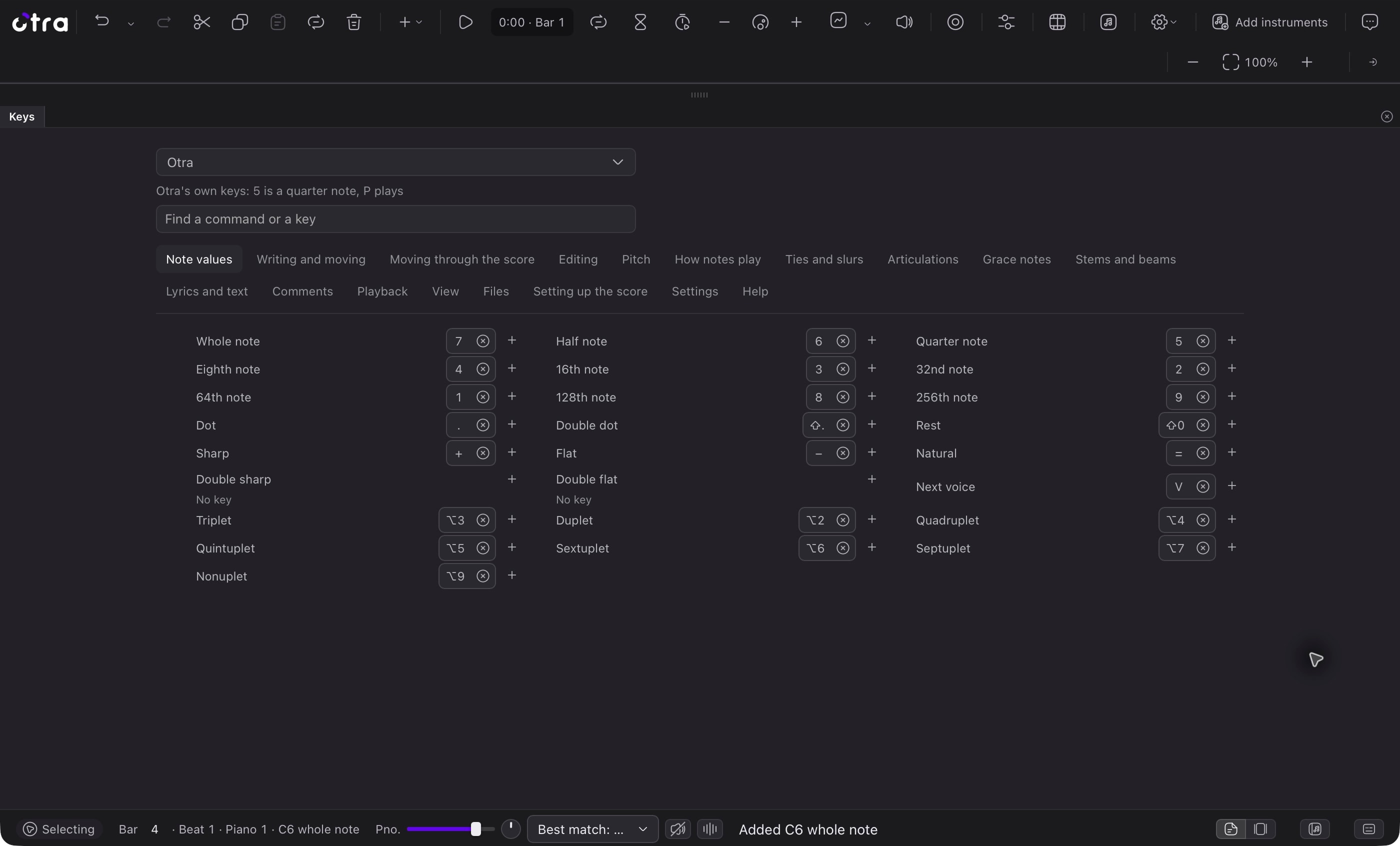
Open Keys in the right dock to select a preset, search commands and inspect or change bindings. This capture shows the installed Mac app’s O'tra preset; use your own Keys panel as the final reference. Captured 23 October 2026 from the installed Mac app.
O'tra glossary and common questions
Musical and product terms
| Term | Meaning in O'tra |
|---|---|
| Score | The whole composition and its instruments |
| Part | An instrument's linked view of the score, with its own layout |
| Staff / staves | The lines on which music is written |
| System | A line of music containing the staves shown together |
| Measure / bar | A rhythmic division separated by barlines |
| Voice | An independent rhythmic line on a staff |
| Chord | Notes sounding together at the same musical position |
| Chord symbol | A text label such as Cm7 or F/A |
| Entry cursor | The position where keyboard entry will write |
| Armed tool | A chosen note or symbol waiting to be placed |
| Tuplet | A group using a ratio such as three notes in the time of two |
| Tie | A connection extending the same pitch across adjacent notes |
| Slur | A phrase mark spanning notes, including different pitches |
| Concert pitch | Displaying sounding pitch rather than transposed written pitch |
| Velocity | The strength of a played MIDI note |
| MIDI thru | Hearing an incoming keyboard through the selected sound |
| SoundFont | A file containing instrument sounds |
| MusicXML | A notation interchange format; compressed files commonly use .mxl |
| Local autosave | A recovery copy in this browser or app's storage |
| Cloud save | A score accepted by your signed-in account's online storage |
| O'tra Rescue | The separate converter for supported Encore .enc files |
Can I use O'tra with a mouse alone?
Core notation actions have visible controls. Choose a note or symbol and click the score; keyboard shortcuts provide another way to work. Some setup values and text naturally require text input.
Does Save export MusicXML?
No. Save keeps the native O'tra score. Choose Export MusicXML from the Save menu to create an interchange file.
Can a friend edit the shared score with me?
Yes. Use Invite to edit for a shared cloud score. A view link opens a read-only copy. See Editing together for access, offline changes and Undo.
Can I open a PDF, photograph, MP3, or WAV as notation?
The editor opens score and performance files listed in the format guide. PDF/image recognition and audio-to-notation transcription are not established by those import controls.
Will every Encore file convert perfectly?
No conversion guarantee applies to every file. Try the actual file, inspect its report, and compare important notation against the original. Keep the source file.
Do I need an account to view a shared link?
The shared-view flow does not require sign-in. The score must still be available through that link.
Are my scores automatically backed up to the cloud?
Only a successful cloud status confirms a cloud save. Local autosave also works as a separate mechanism and can be the only copy. Save important work to a disk file you control.
Can Fin change my subscription or recover a deleted score?
Fin can explain the documented steps. Account changes, payment checks, refunds, and recovery require the appropriate service access or a human team member. A reply alone does not perform those actions.
Projects, ensembles and house style
Start another piece
- In the opening project screen, choose New project or select a recent piece. In builds with the Start a score dialog, choose Blank score or Open last score.
- Choose instruments in their reading order. Check the clef and transposition for each staff, then set the meter, key and tempo. You can revisit Staves and instruments after entering music.
- To keep another score open, choose Open in a new window. Save the first score before using it as the basis for another arrangement.
Set up the first project
In the new-project guide, Name sets the project title. Start with sets the ensemble. Your screen sets the piano and zoom for your workspace. Choose an appearance and the controls you want in the note toolbar. In Your keys, choose a familiar preset or import a compatible keys file. Revisit those assignments in the Keys panel.
Group several scores
Use the project menu beside the title. New project groups the current score. Choose New score in this project for another movement, or add a kept score. Select a title in the menu to switch. Taking a score out leaves it in Your scores.
Share a house style or move a project
Open the score whose layout you want to reuse and choose Use this score’s house style for the project. The project applies its engraving settings, text styles and page setup when a score is shown. Undo reverses that application. Save each score you want to update on disk. Download project packages the scores together as one .otraproj. Open that file on the other computer.
Engraving, grace notes and cross-staff writing
Move a mark on the page
- Enter the notes and choose the score or linked part you intend to print. Switch from Notes to Engraving.
- Select the symbol and use the nudge commands for the active workspace. For staff spacing, drag the round staff handle. The square handle at the top moves the entire system. A system lock keeps its layout fixed. Use the same lock control to unlock it.
- Use the spacing reset for the selected system, page or layout to undo manual spacing at that scope. Preview the part PDF after changing a system break.
Write a grace group or a silent cue
In Grace notes, pick a slashed, unslashed or after-note grace, then click beside the principal note at the desired pitch. Further clicks add to the group. To reduce a measured passage to cue size, select the notes or rests and choose Cue notes under Stems and beams. Turn on Hear cue notes in Parts if the cue should sound.
Send a beamed group to the other staff
Select the notes in a multi-staff instrument. In Stems and beams, choose the staff above or below. Their original voice and playback continue through the cross-staff group. The opposite direction brings them back. For secondary breaks or feathering, first select the beam group, then choose the corresponding beam command.
Choose a pedal mark
In builds that offer the pedal-mark style in Engraving rules, choose the classic glyph or italic pedal text. Inspect a sustain and a release in a part preview to check legibility.
Make a targeted correction
Choose the eraser beside Select and click the unwanted note or mark. For a hairpin or pedal line, click along the line. After changing a tied pitch, check the start and end of the tie and audition across the barline. Undo restores an unintended edit.
Score to picture and mark hit points
- Open Video on the transport and choose Pick a video. Select the local film. Set its frame rate to match the cut, including drop-frame when appropriate.
- Set Video starts at to the timecode on the first frame. Scrub to the frame for bar one and choose Here beside Music starts at. Use the frame arrows for the final adjustment.
- At a cut or gesture, select Add hit point and give it a useful name. Select a point in the list to inspect, rename or remove it. Play from an earlier bar to check the approach.
- Select the bar or note that should begin on the hit. In the hit-point list, choose Fit tempo beside that hit. With no selection, the editor uses the nearest bar. Play across the transition to check it, or Undo to restore the earlier tempo.
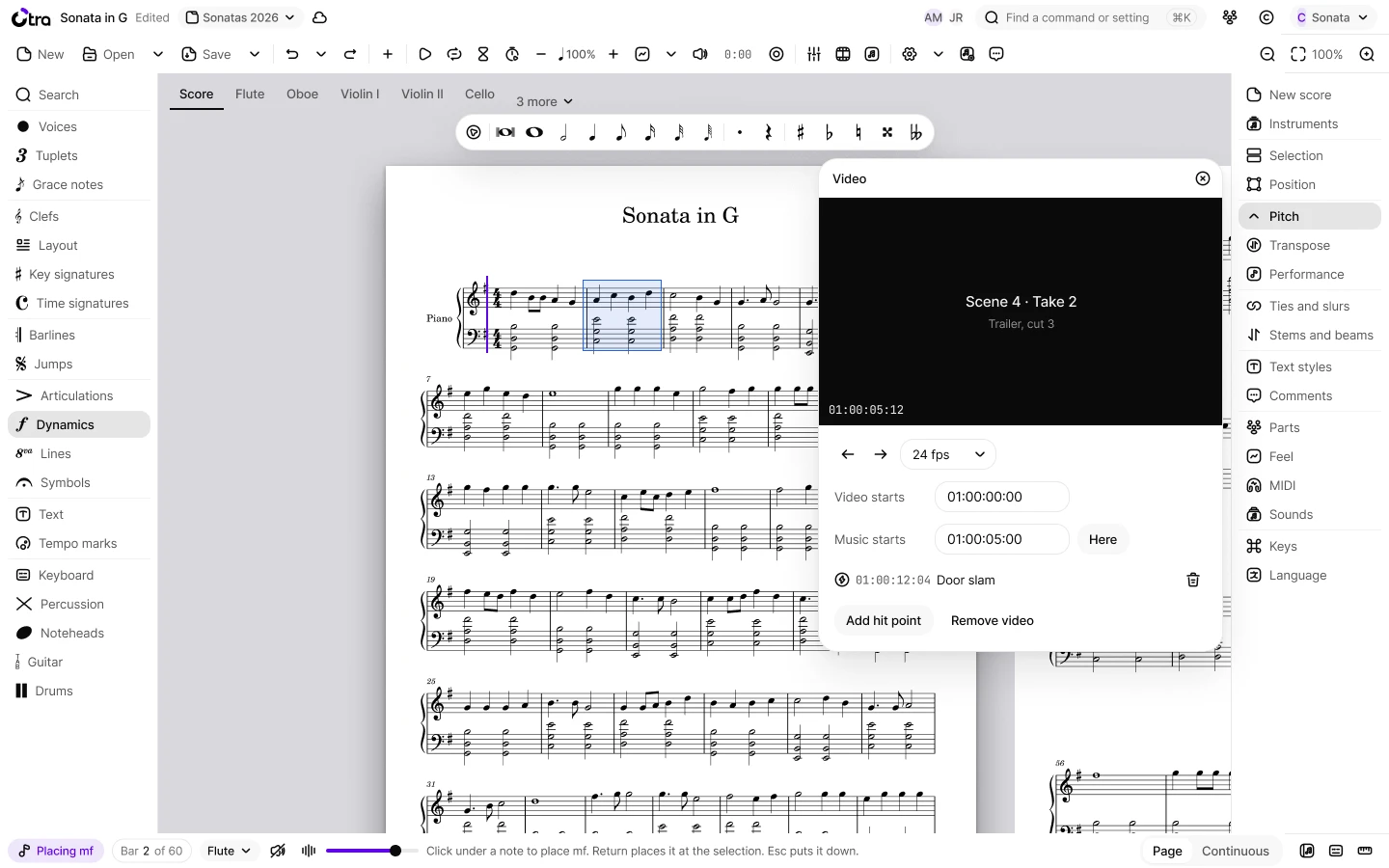
The score keeps the video name, timing offsets and hit points. Reopen the score and pick the same local movie when prompted. Send collaborators the matching cut separately. Timecode and hit flags are guides in the editor and stay off printed parts.
Native formats, conversion reports and edited copies
Open a copy of the source. After import, compare the number of staves, meter, first and last bars, and a passage with ties or tuplets. The following table describes the editor. O'tra Rescue has its own supported Encore inputs.
| Source | Opening and review | Returning work |
|---|---|---|
| O'tra (.otra) and projects (.otraproj) | Open the editable score or the collection of scores. | Save the score, or use Download project for the group. |
| Dorico (.dorico) | Choose a supported flow from a multi-flow project. Review meter changes, tuplets, tempo and the omissions reported for that flow. | Keep the Dorico original. Export MusicXML for notation exchange. Native Dorico writing is unavailable. |
| Finale (.musx) | Open the native project, then inspect imported staves, ties, voices, text and layout. | Finale copy supports a bounded Finale 27.4 subset on existing pitched staves. Unsupported edits can prevent the copy. Use MusicXML for broader transfer. |
| Finale legacy (.mus) or Sibelius (.sib) | Open it in the originating program and export MusicXML there. | Open that MusicXML in the editor and review the layout. |
| MusicTime (.mus) and Encore (.enc) | The reader identifies supported layouts by file contents. Verified MusicTime MTIW C2 scores are supported. Other headers can be refused. | Save an O'tra score or export to MusicXML or MIDI. |
| MuseScore (.mscx or .mscz) | Open the score and review unsupported marks. Compressed originals retain their archive resources. | MuseScore copy handles supported note and rhythm edits on compatible 4.7.6 source files. Save it as a separate copy. |
| MusicXML (.musicxml, .xml, .mxl) | Open plain or compressed notation. Recheck layout and unsupported marks. | Export MusicXML creates compressed .mxl. |
| Standard MIDI (.mid or .midi) | Quantities such as voices and written durations are inferred from performance. Check percussion, tempo and note lengths. | Export MIDI for performance or MusicXML for the interpreted notation. |
| MEI | Use the original notation file or MusicXML to bring the piece into the editor. | Export MEI for an MEI 5.1 notation workflow. |
Recover the exact original
In Things to check, inspect Changes since import by part and bar. Save original file retrieves the imported bytes. Keep your edited .otra score separately. Older scores without a retained source or comparison baseline can offer fewer recovery options.
Review range warnings
If the opening dialog lists notes outside an instrument’s range, review the named part first. Transpose into range moves flagged pitches by octaves and creates an undo step. Check the sounding result and concert-pitch display before keeping the change.
Editing together, comments and version recovery
Choose the right invitation
- For a reader, send a view link. For a co-editor, use the account menu’s Invite to edit on the cloud score and send the copied link.
- The invited musician opens the link and signs in. They can later find it under Your scores → Shared with you. Initials show who is present, and colored outlines show selections.
- Use a comment on a note or passage for a question. Reply in the same thread. Check the print-comments setting before making rehearsal PDFs.
- To end shared editing, the owner chooses Stop editing together. The edit invitation stops working.
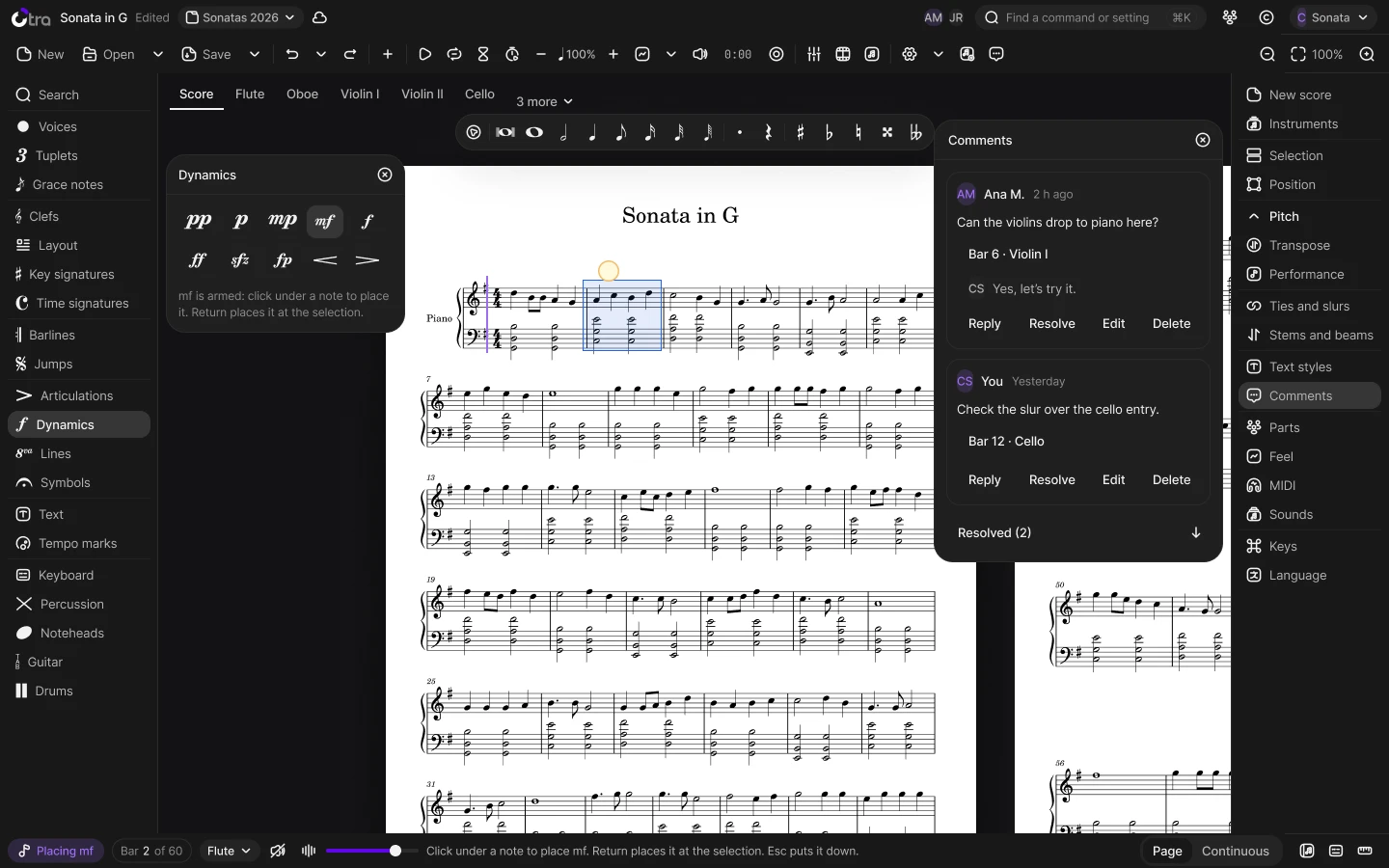
Undo, offline changes and earlier versions
Undo acts on your own edits. If another musician has since changed the same place, the status line explains the skipped step. After reconnecting, review the status line for local changes that could no longer apply. Save a local copy before resolving a disagreement about a passage.
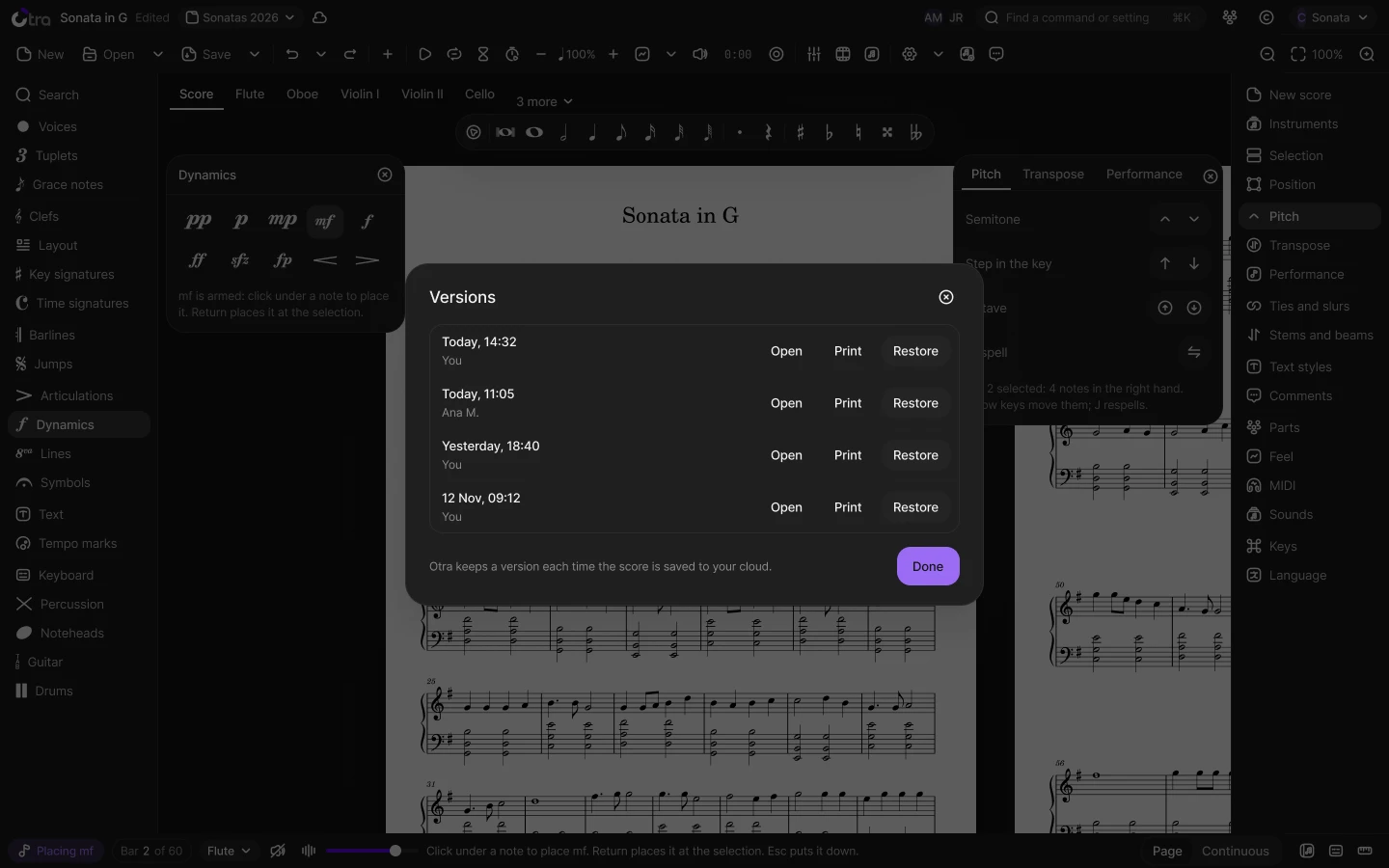
In Versions, choose Open to inspect an earlier score or Restore to make that notation current. Owners can recover their retained import from a cloud copy. A collaborator or view-link recipient receives the editable notation without the owner’s private imported file.
Mac plug-ins, mixer and recording
Assign an installed instrument
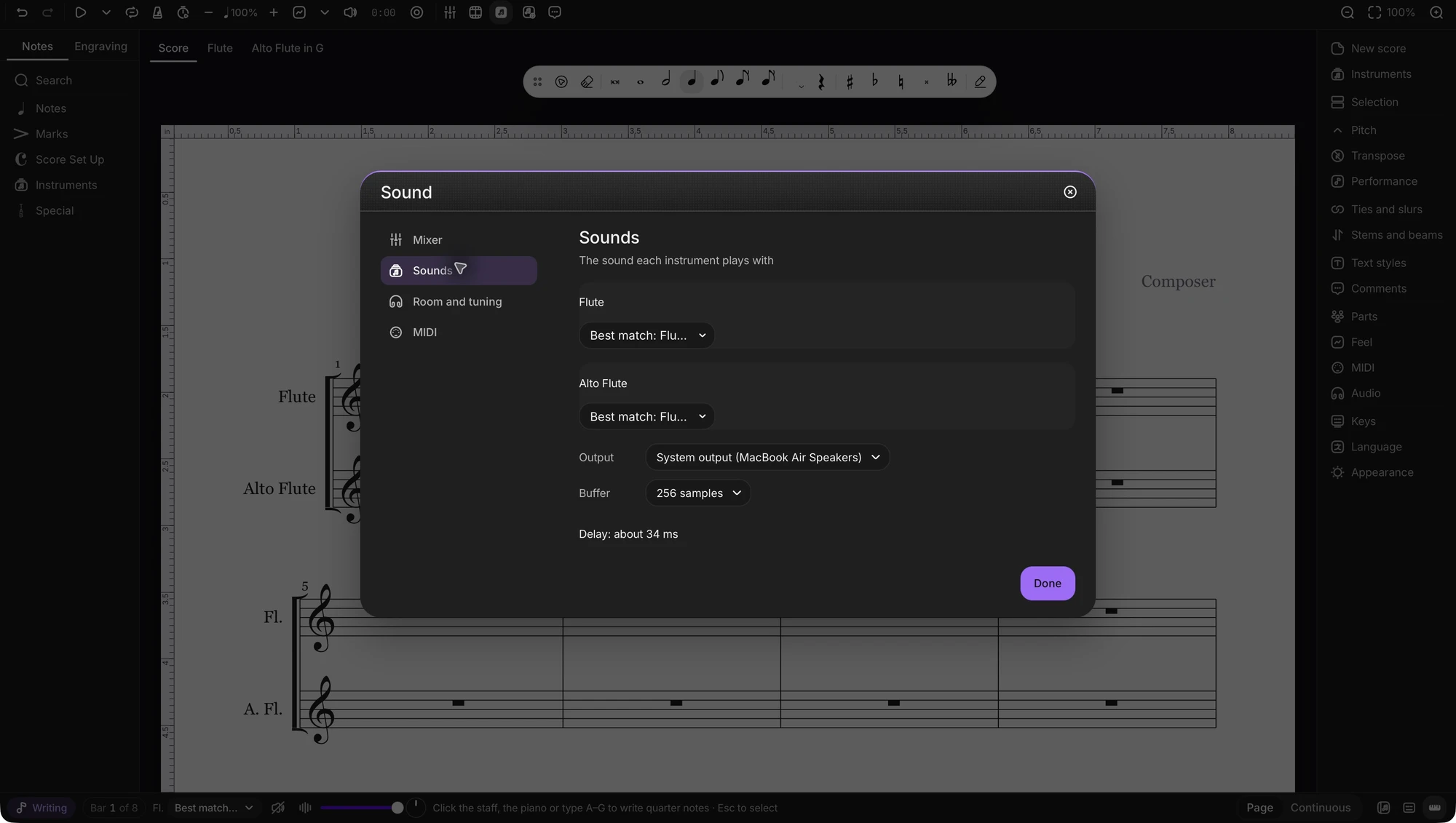
- Open the Mac app and select the intended part. Open its sound selector and look under Plugins. Search by maker or instrument name if the list is long.
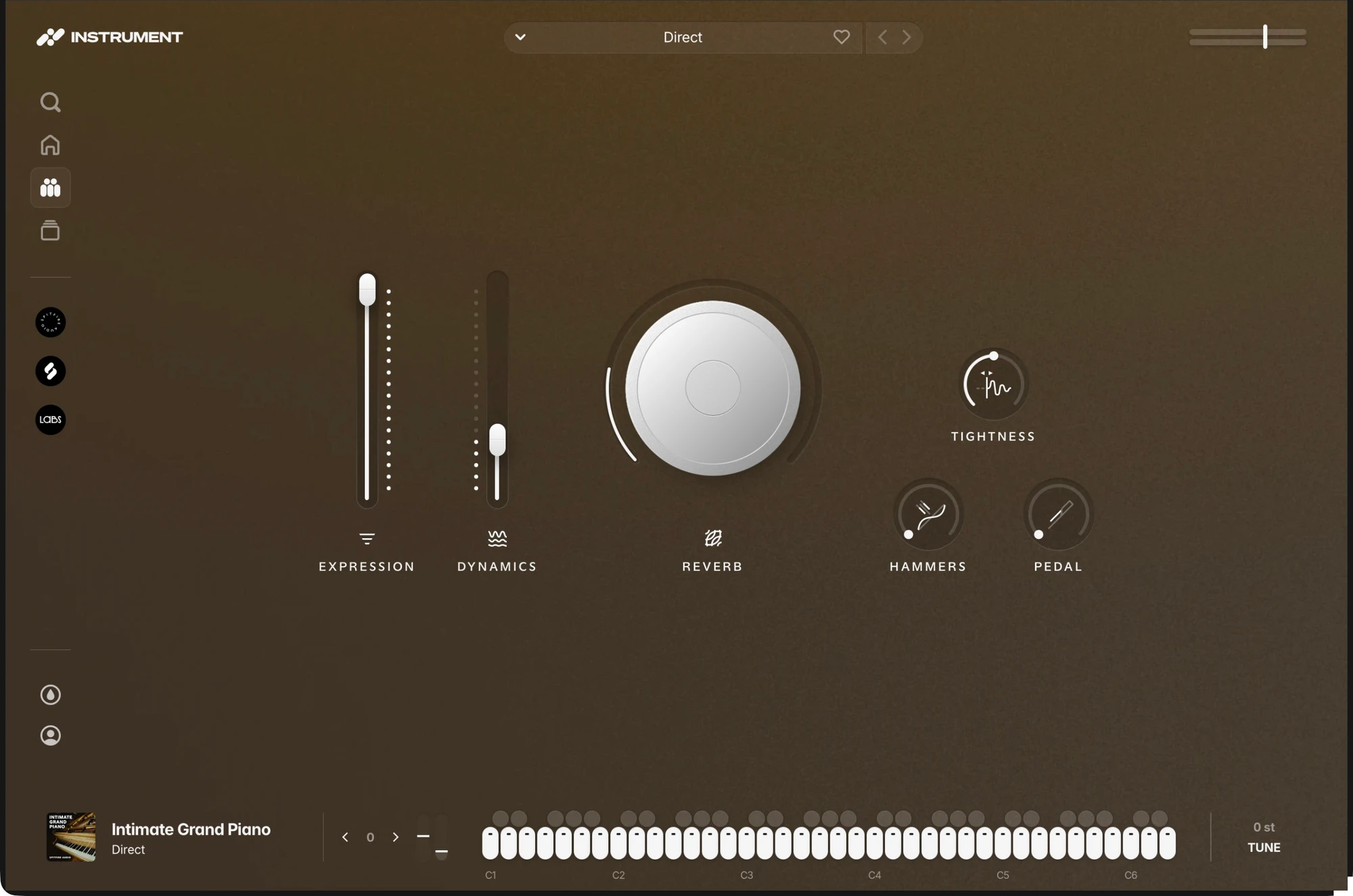
- Select the AU or VST3 instrument. Open the plug-in window from that part’s mixer strip to choose the patch and adjust its controls.
- Play a short passage, solo the part to check its sound, then clear Solo and balance the ensemble. Save the score. A second Mac needs the compatible plug-in and sound library for the same playback.
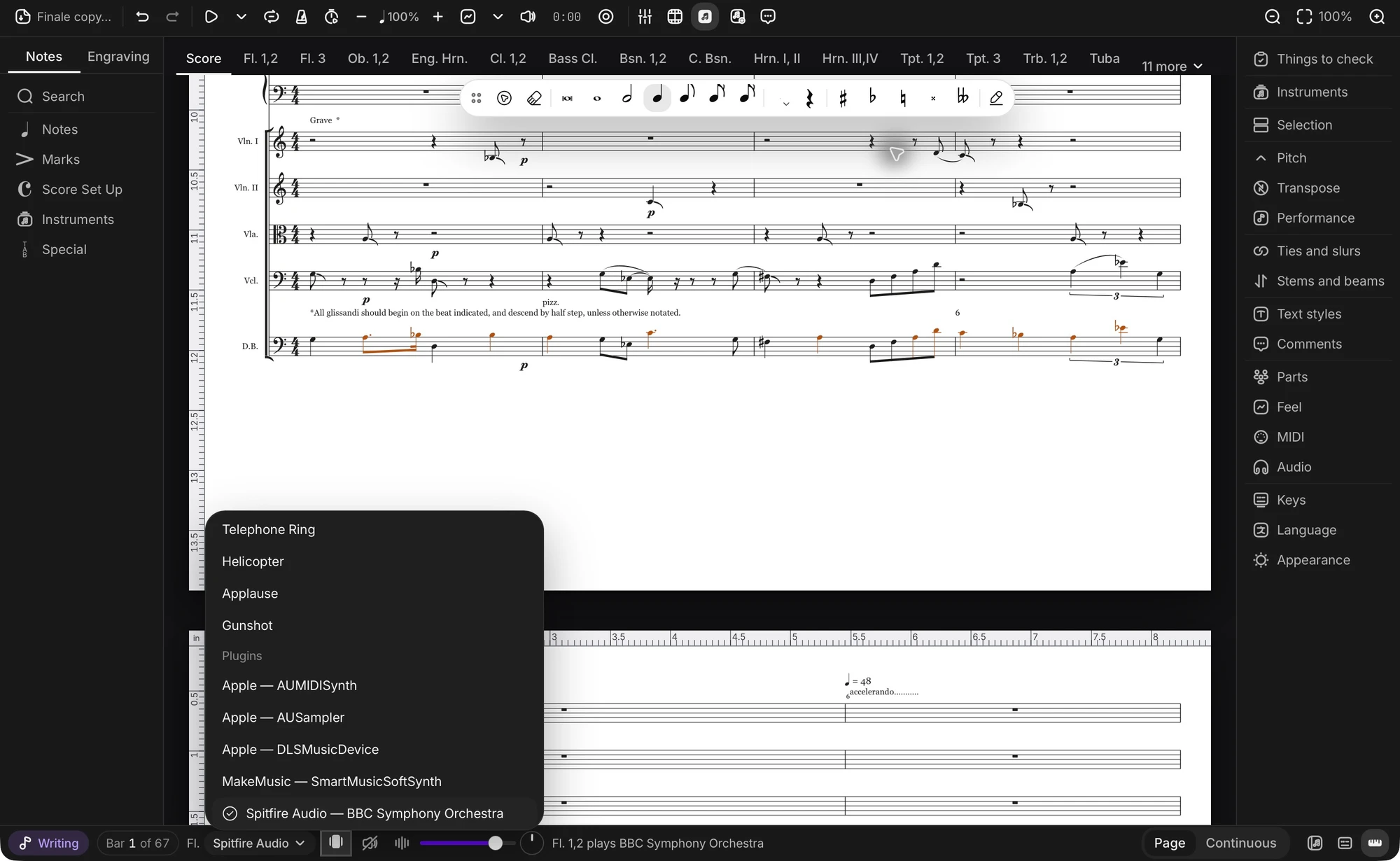
Trace a silent part
Check Mute, Solo and the part fader. In Sound, verify the output device and buffer. Audition a built-in sound, then reselect the plug-in. A missing plug-in remains identified in the part. If it stopped, look for Try again. Check for a compatible Apple silicon or Intel build if the instrument is unavailable.
Check a recorded performance
Select the target staff, confirm MIDI input and monitoring, and start Record from the intended bar. After the count-in, play a short take and stop. Check durations in the score and the attacks in the piano roll. Adjust the selected notes’ timing or velocity there. An external MIDI-only destination needs its own receiving instrument to make sound.
Email sign-in, cart and checkout
- Choose Start free trial to create an account, or Sign in to return. Enter the address you intend to use for the score account and checkout.
- Open the single-use link within 15 minutes, in the same browser as the cart. If the email app opens a separate browser, copy the link into the browser where you started. On a local preview, open it on the Mac running the site.
- Return to the cart. Check the edition and annual price. Select Checkout to review the amount and tax before paying. Closing checkout keeps the selection.
- After checkout, check the account’s subscription status. If payment succeeded but access has not appeared, keep the receipt and check the signed-in email before paying again.
When a link fails
Search the inbox and junk folder for the sign-in message. If a link has expired or has already been used, request a fresh one. If several requests are pending, wait for one to arrive or for the 15-minute window to pass. On the local preview, a delivery-configuration error means the Mac hosting the preview needs its mailbox setup.
Command finder and complete default shortcuts
Open Find a command or setting, enter a name such as “page setup”, use the arrows to highlight a result and press Return. Escape closes the list. For a custom layout, open Keys, search the command and inspect the active assignment. Presets include O'tra, classic, Finale, Sibelius, Dorico and MuseScore. A text field or a plug-in window receives its own keyboard input.
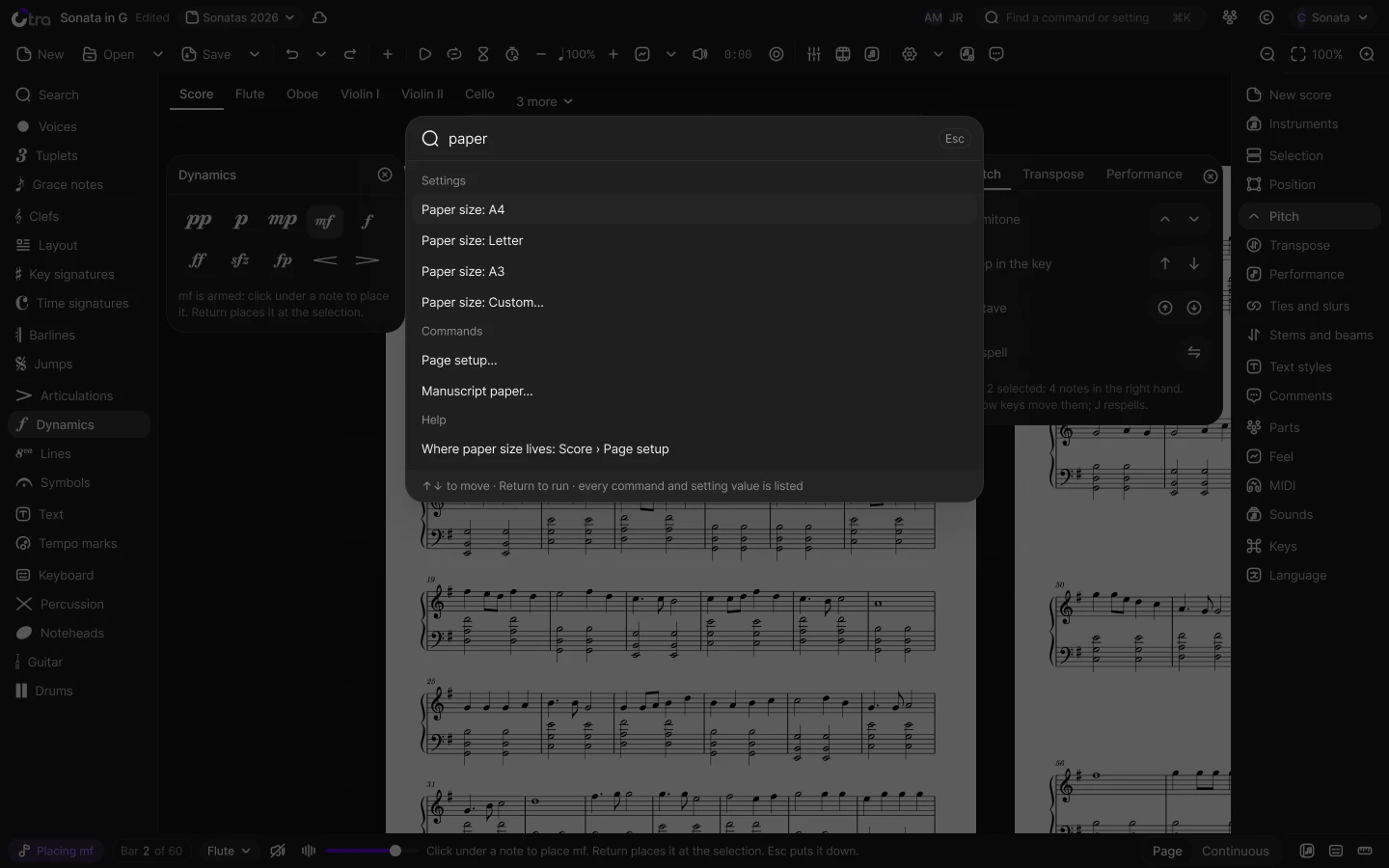
These 247 commands use the default O'tra preset in the protected build. The tooltip in your editor shows your active shortcut. Unassigned commands can be reached from the interface or assigned in Keys.
Note values
| Command | Mac | Other keyboards | Workspace |
|---|---|---|---|
| Long | ⇧8 | Shift+8 | Notes |
| Breve | ⇧7 | Shift+7 | Notes |
| Whole note | 7 | 7 | Notes |
| Half note | 6 | 6 | Notes |
| Quarter note | 5 | 5 | Notes |
| Eighth note | 4 | 4 | Notes |
| 16th note | 3 | 3 | Notes |
| 32nd note | 2 | 2 | Notes |
| 64th note | 1 | 1 | Notes |
| 128th note | 8 | 8 | Notes |
| 256th note | 9 | 9 | Notes |
| Dot | . | . | Notes |
| Double dot | ⇧. | Shift+. | Notes |
| Triple dot | ⌥. | Alt+. | Notes |
| Rest | ⇧0 | Shift+0 | Notes |
| Sharp | + | + | Notes |
| Flat | − | − | Notes |
| Natural | = | = | Notes |
| Double sharp | Unassigned | Unassigned | Notes |
| Double flat | Unassigned | Unassigned | Notes |
| Next voice | V | V | Notes |
| Triplet | ⌥3 | Alt+3 | Notes |
| Duplet | ⌥2 | Alt+2 | Notes |
| Quadruplet | ⌥4 | Alt+4 | Notes |
| Quintuplet | ⌥5 | Alt+5 | Notes |
| Sextuplet | ⌥6 | Alt+6 | Notes |
| Septuplet | ⌥7 | Alt+7 | Notes |
| Nonuplet | ⌥9 | Alt+9 | Notes |
Writing and moving
| Command | Mac | Other keyboards | Workspace |
|---|---|---|---|
| Stop writing, or clear the selection | Esc | Esc | Both |
| Write C | C | C | Notes |
| Add C to the chord | ⇧C | Shift+C | Notes |
| Write D | D | D | Notes |
| Add D to the chord | ⇧D | Shift+D | Notes |
| Write E | E | E | Notes |
| Add E to the chord | ⇧E | Shift+E | Notes |
| Write F | F | F | Notes |
| Add F to the chord | ⇧F | Shift+F | Notes |
| Write G | G | G | Notes |
| Add G to the chord | ⇧G | Shift+G | Notes |
| Write A | A | A | Notes |
| Add A to the chord | ⇧A | Shift+A | Notes |
| Write B | B | B | Notes |
| Add B to the chord | ⇧B | Shift+B | Notes |
| Write a rest | 0 | 0 | Notes |
| Previous note | ← | ← | Notes |
| Next note | → | → | Notes |
| Select a note further left | ⇧← | Shift+← | Notes |
| Select a note further right | ⇧→ | Shift+→ | Notes |
| Select a measure further left | ⇧⌘← | Ctrl+Shift+← | Both |
| Select a measure further right | ⇧⌘→ | Ctrl+Shift+→ | Both |
| Select the bars on every staff | ⌥⌘A | Ctrl+Alt+A | Both |
| Select the whole system | ⌥⇧⌘A | Ctrl+Alt+Shift+A | Both |
| Select all | ⌘A | Ctrl+A | Both |
Moving through the score
| Command | Mac | Other keyboards | Workspace |
|---|---|---|---|
| Previous measure | ⌘← | Ctrl+← | Both |
| Staff above | ⇧↑ | Shift+↑ | Notes |
| Previous system | Page Up | Page Up | Both |
| Next measure | ⌘→ | Ctrl+→ | Both |
| Staff below | ⇧↓ | Shift+↓ | Notes |
| Next system | Page Down | Page Down | Both |
Editing
| Command | Mac | Other keyboards | Workspace |
|---|---|---|---|
| Undo | ⌘Z | Ctrl+Z | Both |
| Redo | ⇧⌘Z or ⌃Y | Ctrl+Shift+Z or Ctrl+Y | Both |
| Delete | Delete or Backspace | Delete or Backspace | Both |
| Cut | ⌘X | Ctrl+X | Both |
| Copy | ⌘C | Ctrl+C | Both |
| Paste | ⌘V | Ctrl+V | Both |
| Repeat | R | R | Both |
| Delete the last measure | ⌥⇧⌘Backspace | Ctrl+Alt+Shift+Backspace | Both |
| Add a measure at the end | ⌘B | Ctrl+B | Both |
| Insert a measure before the selection | ⇧⌘B | Ctrl+Shift+B | Both |
| Insert a measure after the selection | ⌥⌘B | Ctrl+Alt+B | Both |
| Delete the selected measures | ⌥⌘Backspace | Ctrl+Alt+Backspace | Both |
| Repeat the bar before | ⌥⌘1 | Ctrl+Alt+1 | Both |
| Repeat the 2 bars before | ⌥⌘2 | Ctrl+Alt+2 | Both |
| Repeat the 4 bars before | ⌥⌘4 | Ctrl+Alt+4 | Both |
| Remove the bar repeat | ⌥⇧⌘R | Ctrl+Alt+Shift+R | Both |
| Align spacing | ⌥⌘J | Ctrl+Alt+J | Both |
| Align spacing exactly in time | ⌥⇧⌘J | Ctrl+Alt+Shift+J | Both |
| Let measures flow onto lines again | ⌥⇧⌘F | Ctrl+Alt+Shift+F | Both |
| Add instruments | ⌘I | Ctrl+I | Both |
| Add page at the end | ⌥⇧⌘P | Ctrl+Alt+Shift+P | Both |
| Insert page before this page | ⇧⌘P | Ctrl+Shift+P | Both |
| Insert page after this page | ⌥⌘P | Ctrl+Alt+P | Both |
| Delete this page and its measures | ⌥⇧⌘D | Ctrl+Alt+Shift+D | Both |
| Highlight the selection | Unassigned | Unassigned | Both |
| Remove highlight | Unassigned | Unassigned | Both |
| Include highlights in PDF and print | Unassigned | Unassigned | Both |
Pitch
| Command | Mac | Other keyboards | Workspace |
|---|---|---|---|
| Up a semitone | ↑ | ↑ | Notes |
| Down a semitone | ↓ | ↓ | Notes |
| Respell | J | J | Notes |
| Up an octave | ⌘↑ | Ctrl+↑ | Notes |
| Down an octave | ⌘↓ | Ctrl+↓ | Notes |
| Up a step | ⌥↑ | Alt+↑ | Notes |
| Down a step | ⌥↓ | Alt+↓ | Notes |
How notes play
| Command | Mac | Other keyboards | Workspace |
|---|---|---|---|
| Play louder | ⌥⌘↑ | Ctrl+Alt+↑ | Notes |
| Play softer | ⌥⌘↓ | Ctrl+Alt+↓ | Notes |
| Start a 64th earlier | ⌥← | Alt+← | Notes |
| Start a 64th later | ⌥→ | Alt+→ | Notes |
| Sound shorter | ⌥⇧← | Alt+Shift+← | Notes |
| Sound longer | ⌥⇧→ | Alt+Shift+→ | Notes |
| Play as written | ⌥⌘0 | Ctrl+Alt+0 | Notes |
Ties and slurs
| Command | Mac | Other keyboards | Workspace |
|---|---|---|---|
| Tie | T | T | Both |
| Slur | S | S | Both |
Articulations
| Command | Mac | Other keyboards | Workspace |
|---|---|---|---|
| Staccato | Q | Q | Both |
| Accent | W | W | Both |
| Tenuto | U | U | Both |
| Marcato | Y | Y | Both |
| Staccatissimo | I | I | Both |
Grace notes
| Command | Mac | Other keyboards | Workspace |
|---|---|---|---|
| Grace note with a slash | ⌥G | Alt+G | Both |
| Grace note | ⌥⇧G | Alt+Shift+G | Both |
Stems and beams
| Command | Mac | Other keyboards | Workspace |
|---|---|---|---|
| Flip stems | X | X | Both |
| Beam together or apart | H | H | Both |
| Notes to the staff above | ⇧⌘↑ | Ctrl+Shift+↑ | Both |
| Notes to the staff below | ⇧⌘↓ | Ctrl+Shift+↓ | Both |
| Cue notes | ⌥C | Alt+C | Both |
| Break inner beams | ⇧H | Shift+H | Both |
| Break to 16ths | ⌥⇧H | Alt+Shift+H | Both |
| Feathered beam, faster | Unassigned | Unassigned | Both |
| Feathered beam, slower | Unassigned | Unassigned | Both |
Lyrics and text
| Command | Mac | Other keyboards | Workspace |
|---|---|---|---|
| Lyrics | ⌘L | Ctrl+L | Both |
| Chord symbol | ⇧⌘K | Ctrl+Shift+K | Both |
| Text | ⌘T | Ctrl+T | Both |
| Rehearsal mark | ⌘R | Ctrl+R | Both |
| Harp pedals | ⌥⇧⌘H | Ctrl+Alt+Shift+H | Both |
Comments
| Command | Mac | Other keyboards | Workspace |
|---|---|---|---|
| Add a comment | ⌥⌘M | Ctrl+Alt+M | Both |
| Include comments in PDF and print | Unassigned | Unassigned | Both |
Playback
| Command | Mac | Other keyboards | Workspace |
|---|---|---|---|
| Play or stop | P or Space | P or Space | Both |
| Loop | L | L | Both |
| Record | ⇧R | Shift+R | Both |
| Show or hide the mixer | M | M | Both |
| Show or hide the video | ⇧V | Shift+V | Both |
View
| Command | Mac | Other keyboards | Workspace |
|---|---|---|---|
| Concert pitch | K | K | Both |
| Go to bar | ⌘G | Ctrl+G | Both |
| Find a command or setting | ⌘K | Ctrl+K | Both |
| Page view or continuous view | ⇧P | Shift+P | Both |
| Show or fold the piano keyboard | ⌥K | Alt+K | Notes |
| Show or hide the rulers | ⌥R | Alt+R | Both |
| Show or close the piano roll | ⇧O | Shift+O | Both |
| Zoom in | ⌘+ or ⇧⌘+ or ⌘Num + | Ctrl++ or Ctrl+Shift++ or Ctrl+Num + | Both |
| Zoom out | ⌘− or ⌘Num − | Ctrl+− or Ctrl+Num − | Both |
| Show entire score | ⌘9 | Ctrl+9 | Both |
| Customise the island | Unassigned | Unassigned | Notes |
| Search the palettes | / | / | Both |
| Engraving mode | ⇧N | Shift+N | Both |
| Key signatures | ⇧K | Shift+K | Notes |
| Time signatures | ⇧T | Shift+T | Notes |
| Tempo marks | ⇧M | Shift+M | Notes |
| Notes tab | ⌥⇧1 | Alt+Shift+1 | Notes |
| Marks tab | ⌥⇧2 | Alt+Shift+2 | Notes |
| Score Set Up tab | ⌥⇧3 | Alt+Shift+3 | Notes |
| Instruments tab | ⌥⇧4 | Alt+Shift+4 | Notes |
| Special tab | ⌥⇧5 | Alt+Shift+5 | Notes |
Engraving
| Command | Mac | Other keyboards | Workspace |
|---|---|---|---|
| Nudge left | ⌥← | Alt+← | Engraving |
| Nudge left a whole staff space | ⌥⌘← | Ctrl+Alt+← | Engraving |
| Select the symbol to the left | ← | ← | Engraving |
| Add the symbol to the left | ⇧← | Shift+← | Engraving |
| Nudge right | ⌥→ | Alt+→ | Engraving |
| Nudge right a whole staff space | ⌥⌘→ | Ctrl+Alt+→ | Engraving |
| Select the symbol to the right | → | → | Engraving |
| Add the symbol to the right | ⇧→ | Shift+→ | Engraving |
| Nudge up | ⌥↑ | Alt+↑ | Engraving |
| Nudge up a whole staff space | ⌥⌘↑ | Ctrl+Alt+↑ | Engraving |
| Select the symbol above | ↑ | ↑ | Engraving |
| Add the symbol above | ⇧↑ | Shift+↑ | Engraving |
| Nudge down | ⌥↓ | Alt+↓ | Engraving |
| Nudge down a whole staff space | ⌥⌘↓ | Ctrl+Alt+↓ | Engraving |
| Select the symbol below | ↓ | ↓ | Engraving |
| Add the symbol below | ⇧↓ | Shift+↓ | Engraving |
| Put back | ⌥0 | Alt+0 | Engraving |
| Put back its look and shape | ⌥⇧0 | Alt+Shift+0 | Engraving |
| Pick the first handle | 1 | 1 | Engraving |
| Pick the second handle | 2 | 2 | Engraving |
| Pick the third handle | 3 | 3 | Engraving |
| Pick the fourth handle | 4 | 4 | Engraving |
| Pick the fifth handle | 5 | 5 | Engraving |
| Let go of the handle | 0 | 0 | Engraving |
| Put staff spacing back in the selected systems | Unassigned | Unassigned | Engraving |
| Put staff spacing back on the selected pages | Unassigned | Unassigned | Engraving |
| Put staff spacing back in the whole layout | Unassigned | Unassigned | Engraving |
| Copy staff spacing | Unassigned | Unassigned | Engraving |
| Move bar to previous system | ⌥Page Up | Alt+Page Up | Both |
| Move bar to next system | ⌥Page Down | Alt+Page Down | Both |
| Make into system | ⌥S | Alt+S | Both |
| Make into page | Unassigned | Unassigned | Engraving |
| Lock system | ⌥L | Alt+L | Engraving |
| Lock page | Unassigned | Unassigned | Engraving |
| Lock layout | Unassigned | Unassigned | Engraving |
| Reset layout | Unassigned | Unassigned | Engraving |
| Bracket | Unassigned | Unassigned | Engraving |
| Brace | Unassigned | Unassigned | Engraving |
| Square bracket | Unassigned | Unassigned | Engraving |
| Barlines through | Unassigned | Unassigned | Engraving |
| Remove bracket | Unassigned | Unassigned | Engraving |
| Group by family | Unassigned | Unassigned | Engraving |
| Split multi-measure rest | Unassigned | Unassigned | Engraving |
| Join multi-measure rest | Unassigned | Unassigned | Engraving |
Files
| Command | Mac | Other keyboards | Workspace |
|---|---|---|---|
| New score | Unassigned | Unassigned | Both |
| Open | ⌘O | Ctrl+O | Both |
| Open an Encore file | Unassigned | Unassigned | Both |
| Open in a new window | Unassigned | Unassigned | Both |
| Merge scores | Unassigned | Unassigned | Both |
| Convert a folder of Encore files | Unassigned | Unassigned | Both |
| Save | ⌘S | Ctrl+S | Both |
| Save as | ⇧⌘S | Ctrl+Shift+S | Both |
| Export PDF of the score | Unassigned | Unassigned | Both |
| Export PDF of this part | Unassigned | Unassigned | Both |
| Export PDF of all parts | Unassigned | Unassigned | Both |
| Export SVG | Unassigned | Unassigned | Both |
| Export PNG at 150 dpi | Unassigned | Unassigned | Both |
| Export PNG at 300 dpi | Unassigned | Unassigned | Both |
| Export PNG at 600 dpi | Unassigned | Unassigned | Both |
| Print the score | Unassigned | Unassigned | Both |
| Print all parts | Unassigned | Unassigned | Both |
| Print the selected bars | Unassigned | Unassigned | Both |
| Manuscript paper | Unassigned | Unassigned | Both |
| Export MIDI file | Unassigned | Unassigned | Both |
| Export MusicXML | Unassigned | Unassigned | Both |
| Export MEI | Unassigned | Unassigned | Both |
| Export WAV | Unassigned | Unassigned | Both |
| Export MP3 | Unassigned | Unassigned | Both |
| Export AIFF | Unassigned | Unassigned | Both |
| Export FLAC | Unassigned | Unassigned | Both |
| New project | Unassigned | Unassigned | Both |
| Add this score to the project | Unassigned | Unassigned | Both |
| Download project | Unassigned | Unassigned | Both |
| ⌘P | Ctrl+P | Both | |
| Copy music as a picture | ⌥⇧C | Alt+Shift+C | Both |
| Versions | Unassigned | Unassigned | Both |
Setting up the score
| Command | Mac | Other keyboards | Workspace |
|---|---|---|---|
| Score | Unassigned | Unassigned | Both |
| Layout | Unassigned | Unassigned | Both |
| Page setup | Unassigned | Unassigned | Both |
| Staves and instruments | Unassigned | Unassigned | Both |
| Titles, header and footer | Unassigned | Unassigned | Both |
| Engraving | Unassigned | Unassigned | Both |
| Copy lyrics | Unassigned | Unassigned | Both |
Settings
| Command | Mac | Other keyboards | Workspace |
|---|---|---|---|
| Settings | ⌘, | Ctrl+, | Both |
| Key commands | Unassigned | Unassigned | Both |
| Sound output | Unassigned | Unassigned | Both |
| MIDI | Unassigned | Unassigned | Both |
| Sounds | Unassigned | Unassigned | Both |
| Language | Unassigned | Unassigned | Both |
| Set up O'tra | Unassigned | Unassigned | Both |
Help
| Command | Mac | Other keyboards | Workspace |
|---|---|---|---|
| About O'tra | Unassigned | Unassigned | Both |
| Check for updates | Unassigned | Unassigned | Both |
| What’s new | Unassigned | Unassigned | Both |
| First score checklist | Unassigned | Unassigned | Both |
| Contact support | Unassigned | Unassigned | Both |
Other
| Command | Mac | Other keyboards | Workspace |
|---|---|---|---|
| Projects | Unassigned | Unassigned | Both |