Otra

Tutorials

From a blank page.
To a printed score.

Four short walk-throughs, each a minute or two. Everything here works by mouse alone or by keyboard, nothing asks "are you sure?", and ⌘Z (Ctrl+Z on a PC) undoes any step.

  1. 01Write your first notes
  2. 02Add lyrics and chord symbols
  3. 03Hear it played
  4. 04Open Encore files, then print or export

01 — About a minute

Write your first notes.

  1. Press New

    A piano score opens, with the New score panel beside it. Give it a title, add instruments, set the key, time and tempo, or skip all of it and start writing.
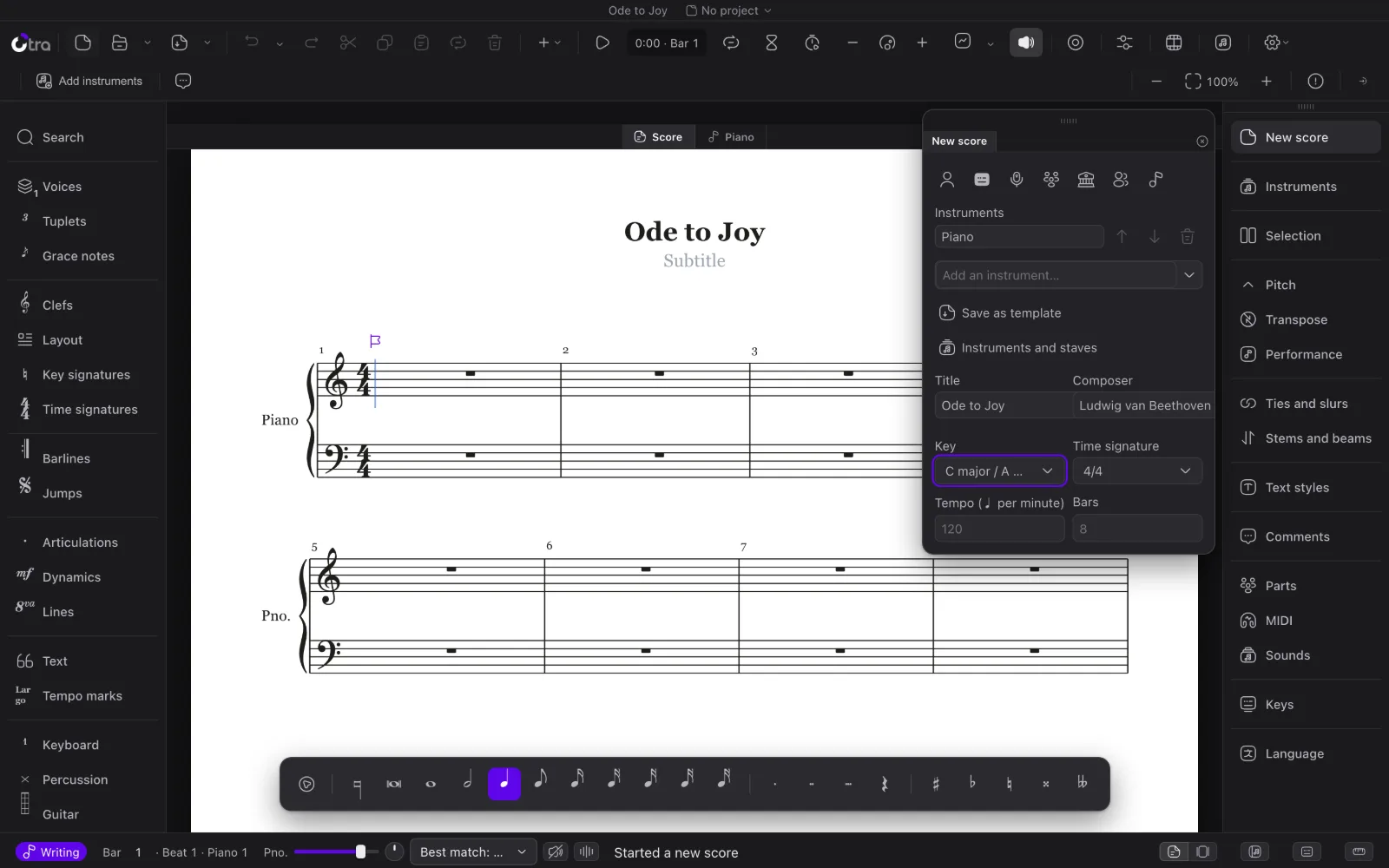
    A new piano score titled Ode to Joy, with the New score panel open: instruments, title, composer, key, time signature, tempo and bars
  2. Point at the staff

    The quarter note is already picked. A pale note follows the pointer to show where it will go. Pick another value in the bar at the bottom of the window, or press 7 to 1 for whole note to 64th.
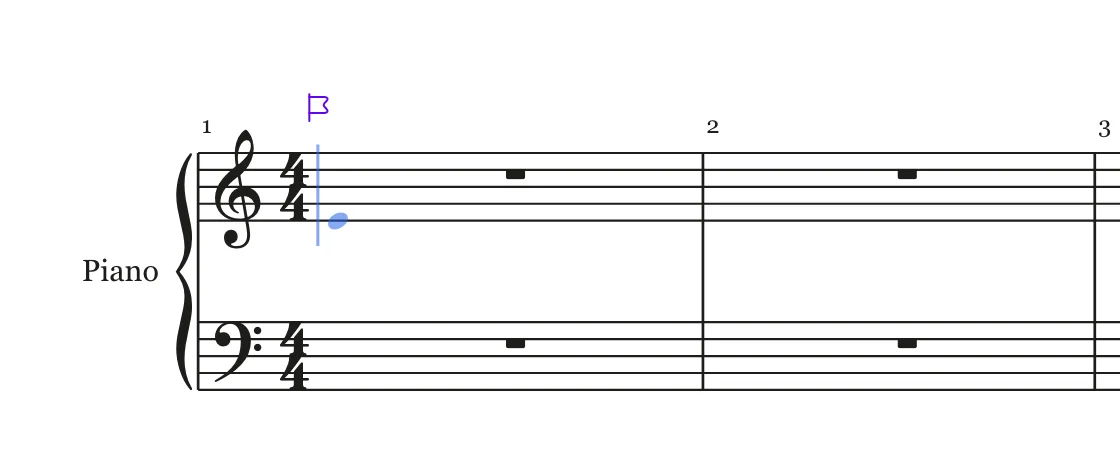
    The empty first bar of the piano staff with a pale preview note on the bottom line where the pointer is
  3. Click, then type

    Click to write the note. Type letter names, A to G, to write the next notes; each lands next to the one before. Gaps fill with rests.
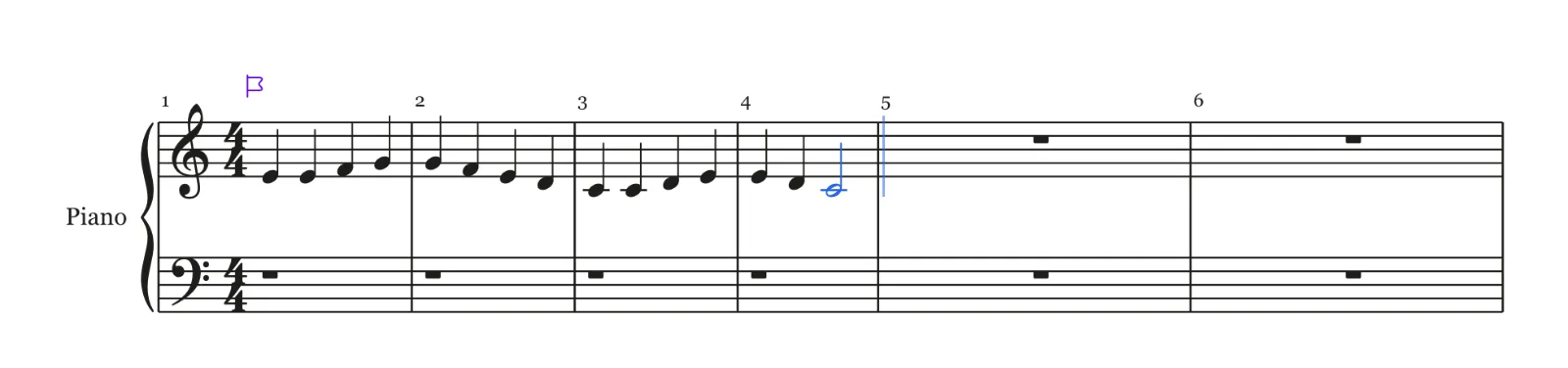
    Four bars of the Ode to Joy melody written in quarter notes, ending on a half note
  4. Make a chord

    Hold Shift and type a letter to add it to the chord, or click the same column again.
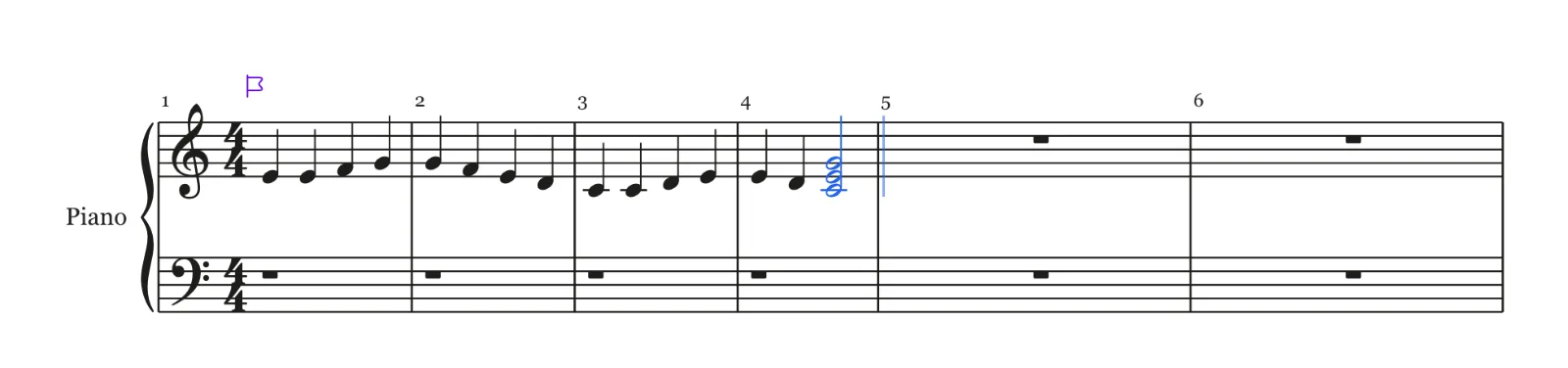
    The melody's last note, a C, with E and G added above it as a chord

02 — About two minutes

Add lyrics and chord symbols.

  1. Type the words

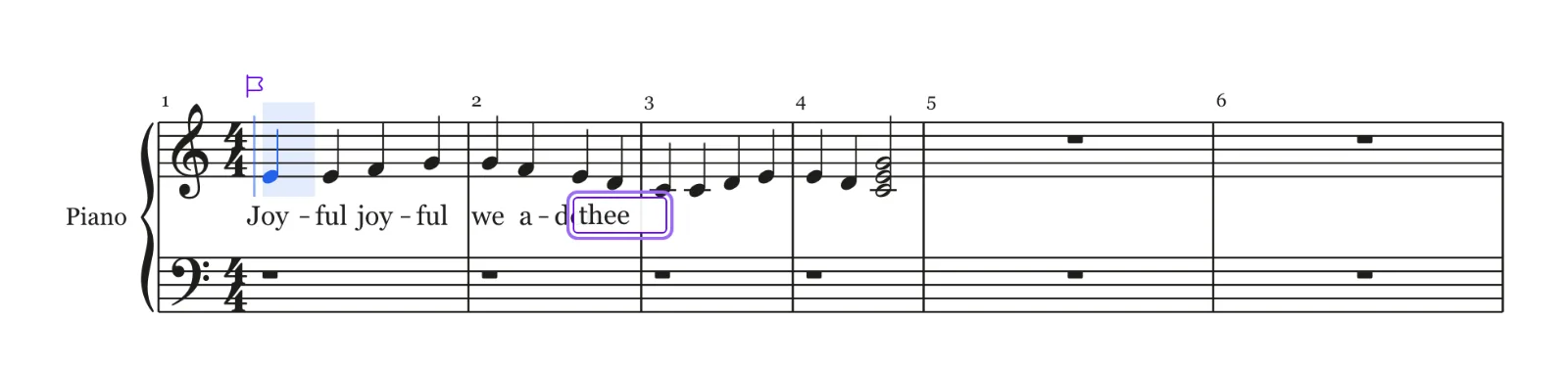
    Press Esc, click the first note, then press ⌘L (Ctrl+L on a PC) and type a syllable. A hyphen moves on to the next note with a dash between; Space moves on to the next word. Enter finishes.

    Lyrics being typed under the melody, Joy-ful joy-ful we a-dore, with the box for the next syllable open
  2. Name the chords

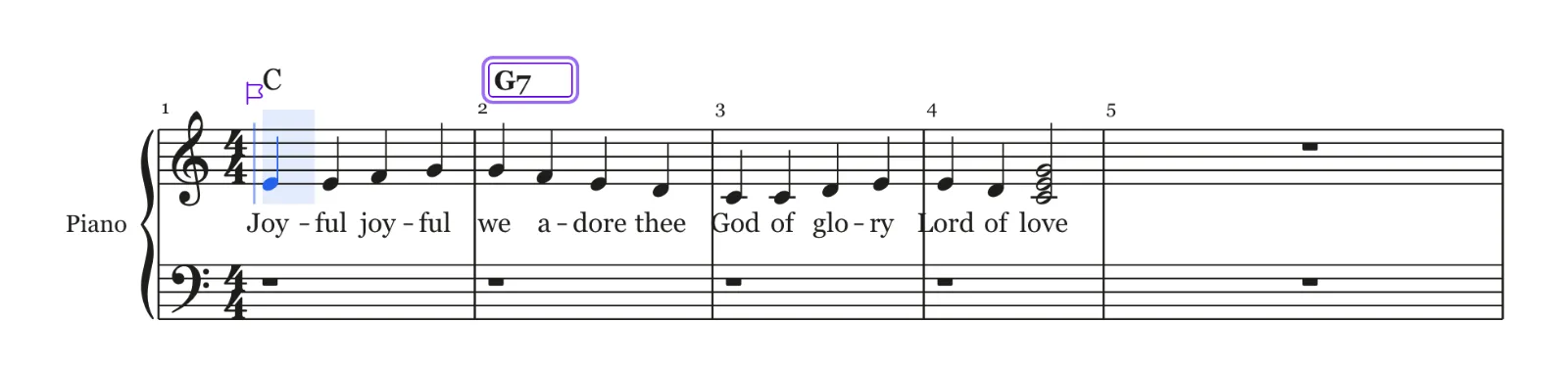
    Click the first note again and press ⌘K (Ctrl+K on a PC). Type a chord such as G7, Cm7b5 or F/A. Space moves on a beat; Enter finishes.

    The chord symbol C above the first bar and G7 being typed above the second
  3. That's it

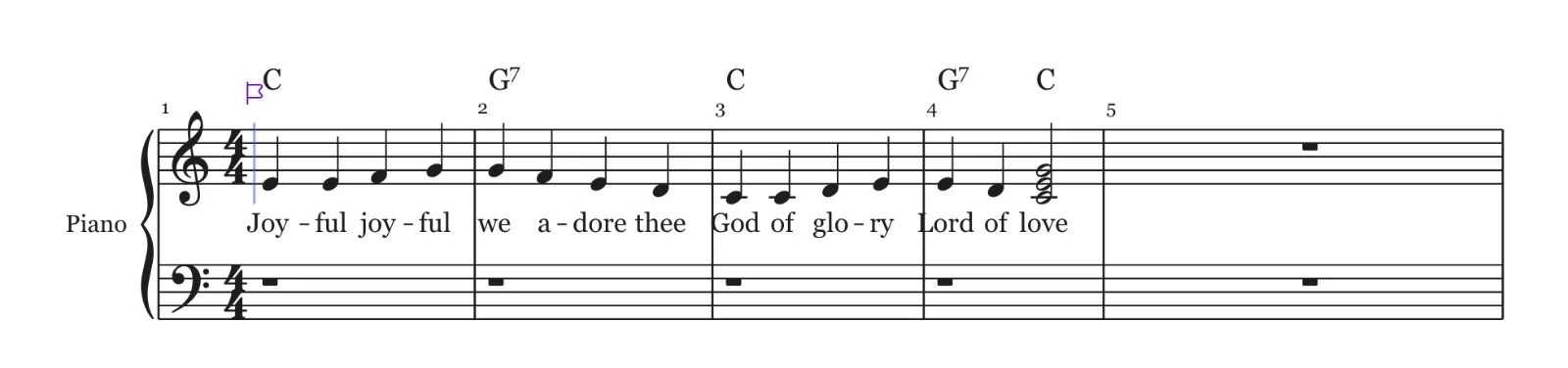
    No dialogs. Drag anything to move it, and your moves stick.

    Four bars of Ode to Joy with lyrics under every note and chord symbols C, G7, C, G7 and C above

03 — Under a minute

Hear it played.

  1. Press Play

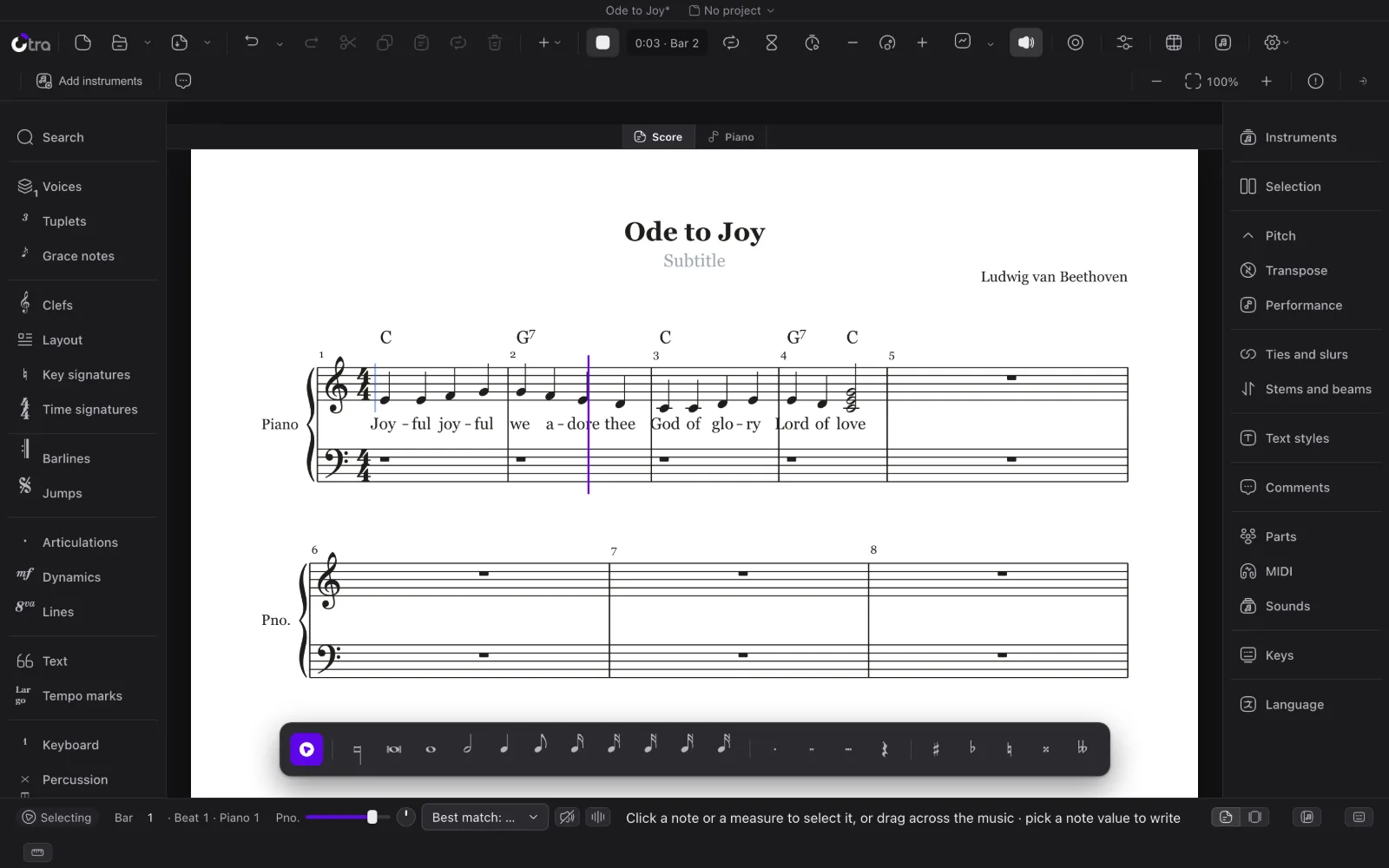
    Press Play at the top, or P. A line follows the music as it plays. Select a note or a bar first to play from there.

    Ode to Joy playing, with the play line in the second bar and the clock at the top showing bar 2
  2. Balance it in the mixer

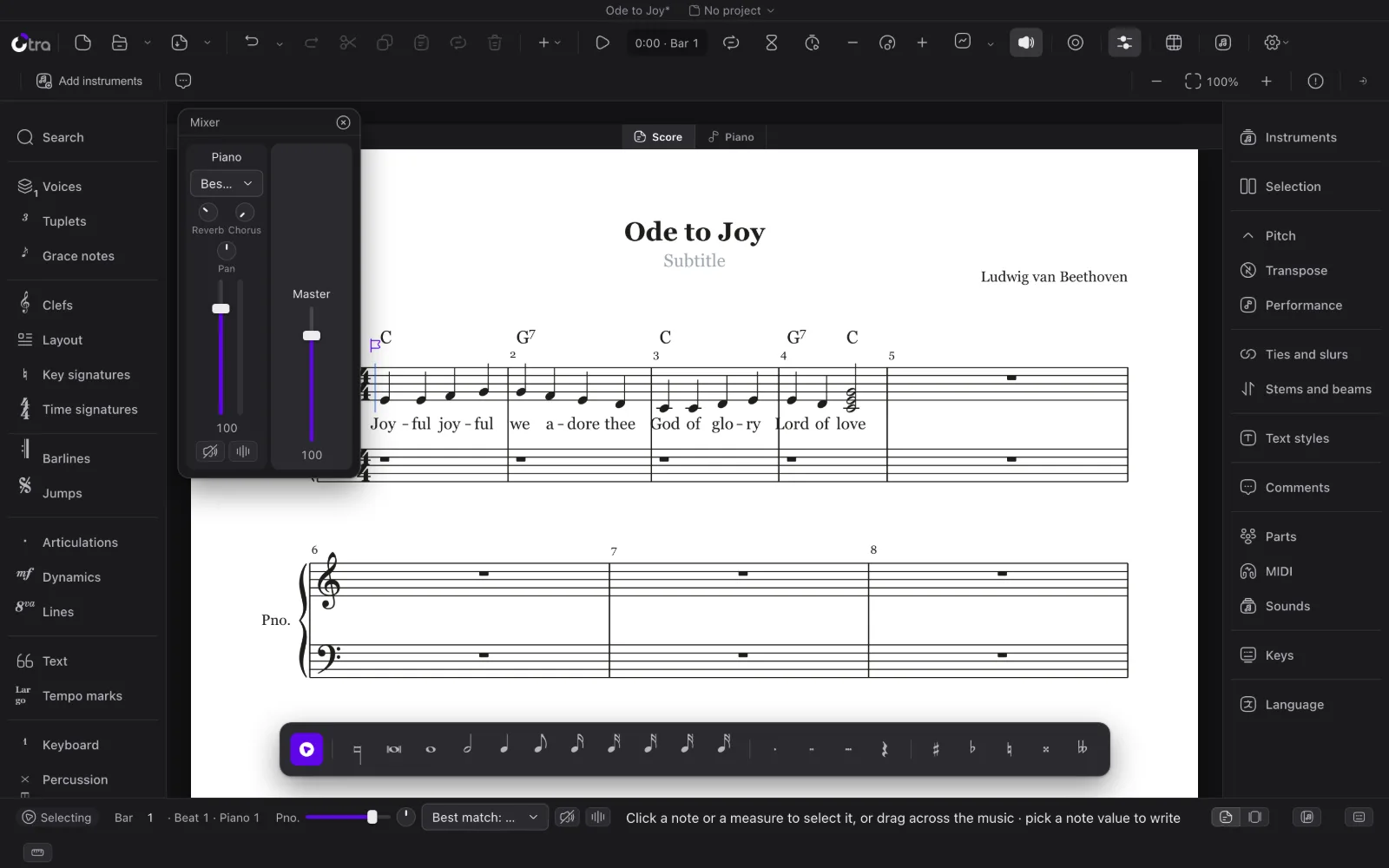
    With Otra Movement or Otra Opus, press M for the mixer: each instrument's sound, reverb, chorus, pan and level, and the master level.

    The mixer open beside the score, with the piano's sound, reverb and chorus knobs, pan, fader and the master fader
  3. Shape it in the piano roll

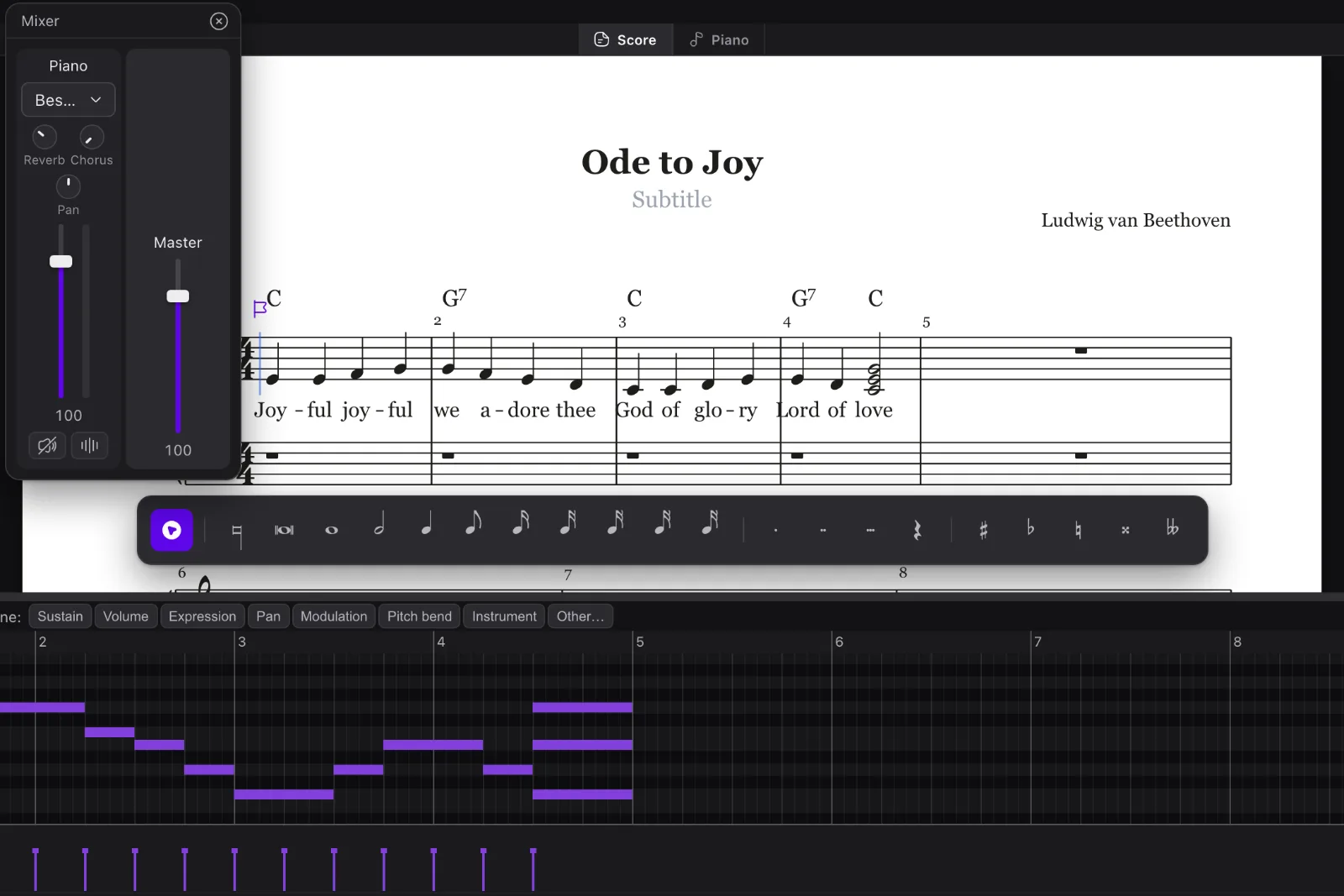
    With Otra Movement or Otra Opus, open the piano roll at the bottom of the window to drag notes, change their length and draw how loud each one plays.

    The piano roll under the score, showing each note as a bar and a velocity strip below

04 — About two minutes

Open Encore files, then print or export.

  1. Press Open

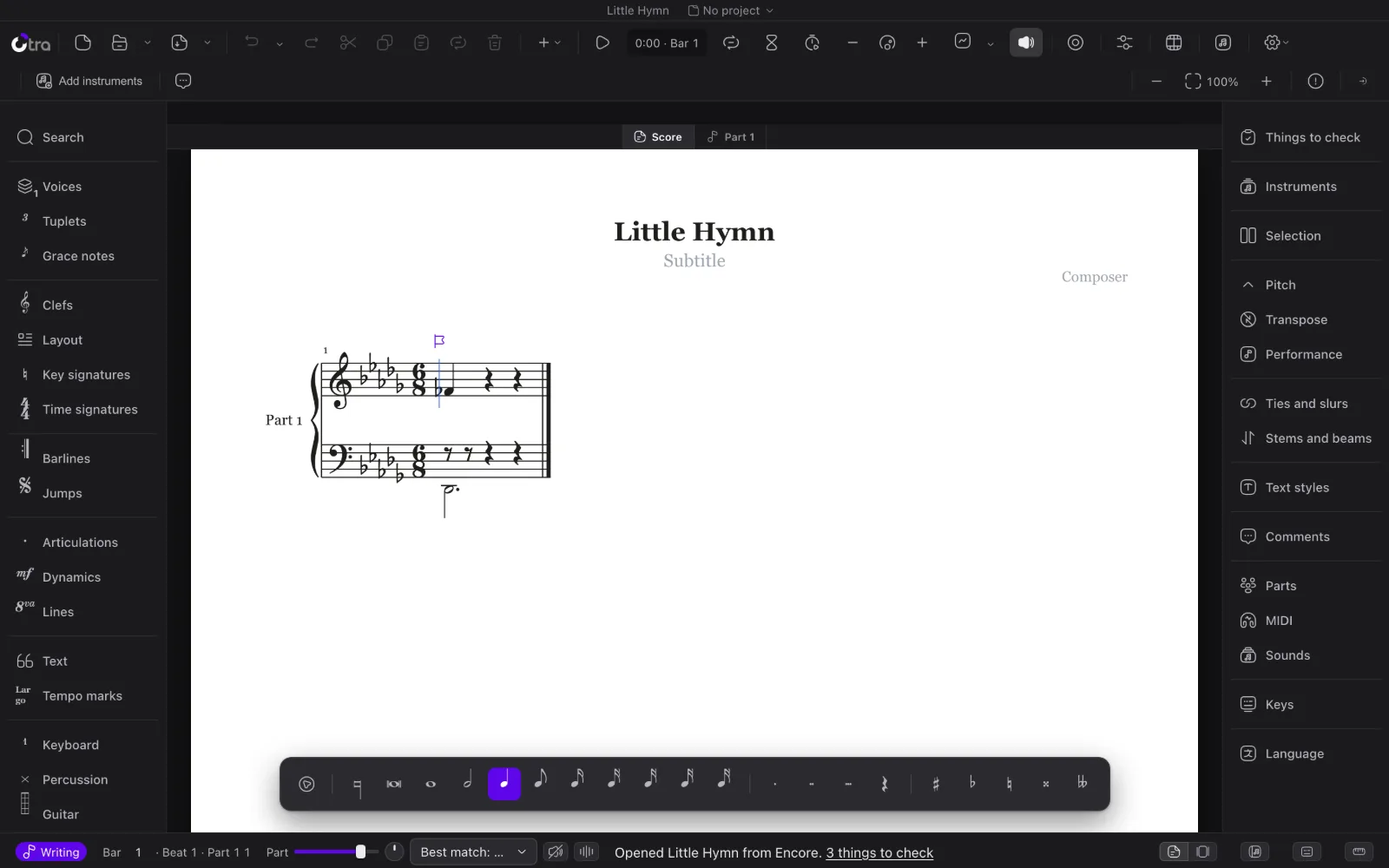
    Choose an Encore file: an .enc file, or an old Mac file with no extension. It opens like any score. MusicXML and MIDI files open the same way.

    An Encore file called Little Hymn opened in Otra, with the status bar saying it opened from Encore with 3 things to check
  2. Look at the things to check

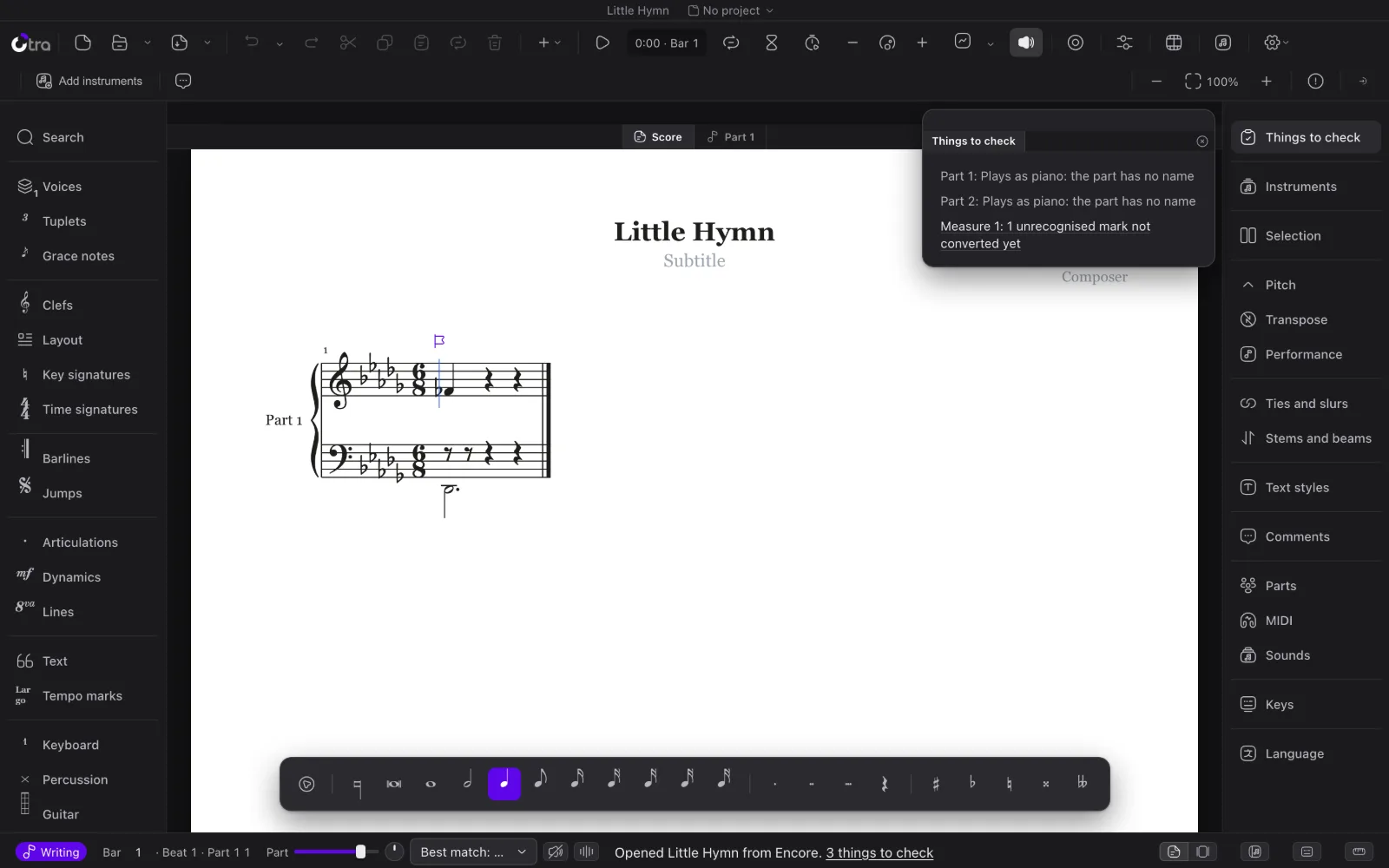
    The status bar says how many there are. Click it for the list; click a line to select its bar.

    The list of things to check: two parts that have no name, and one mark that wasn't converted yet
  3. Print or export

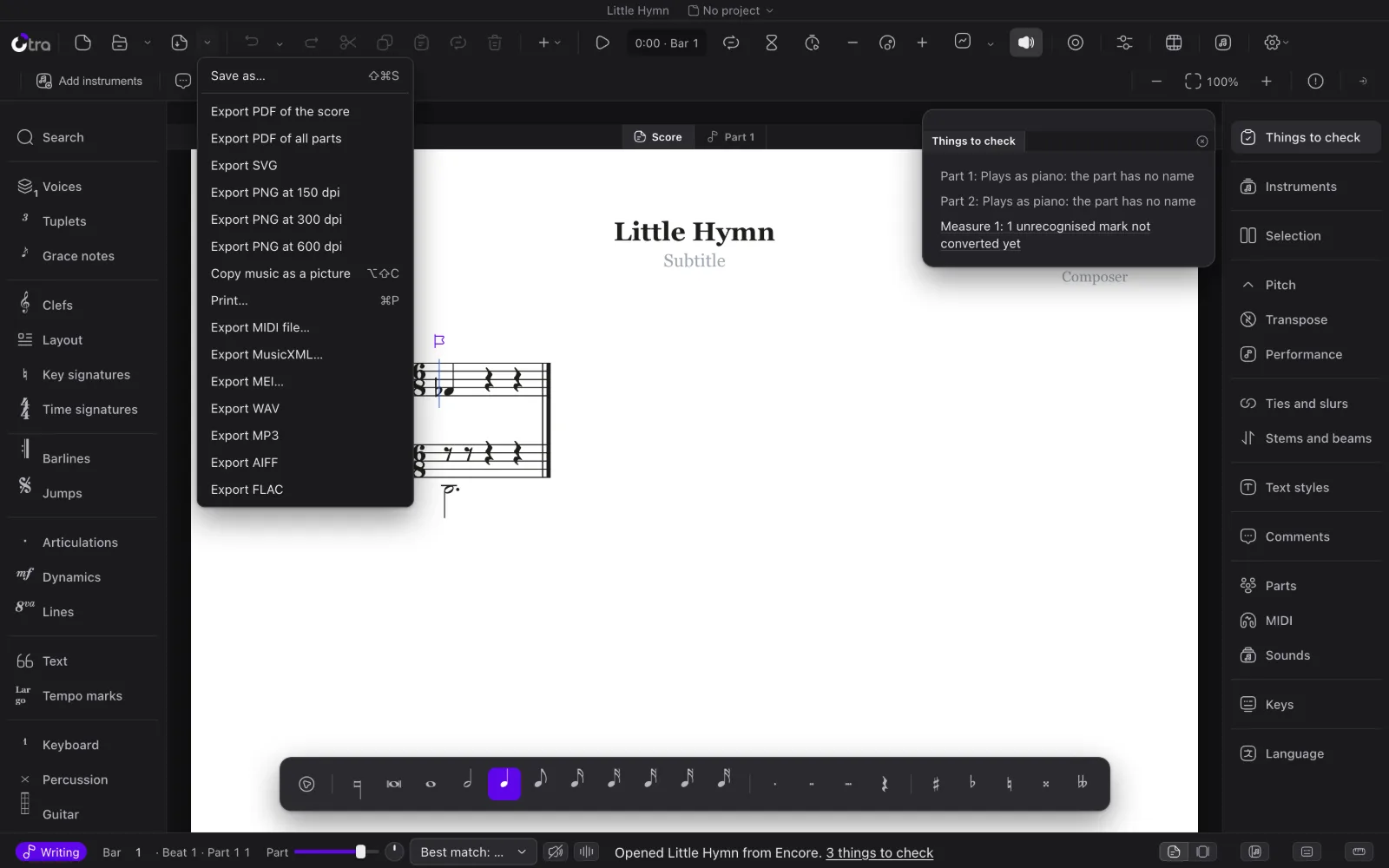
    Press ⌘P (Ctrl+P on a PC) to print, or use Save as and export, next to Open, for a PDF of the score or of every part, MusicXML, MIDI, MEI, PNG or SVG. Otra Movement and Otra Opus also export audio: WAV, MP3, AIFF and FLAC.

    The Save as and export menu: PDF of the score or of all parts, SVG, PNG, Print, MIDI, MusicXML, MEI, WAV, MP3, AIFF and FLAC